
Guides
100 Rooms Level 32 & Level 33 Walkthrough


It’s time to check out the walkthrough for a couple more levels in 100 Rooms, Level 32 and Level 33 which were released with the latest update of the game. I am here to share with you the step by step instructions to complete the Level 32 and Level 33 in the game, so let’s check out the instructions in this guide below!
100 Rooms Level 32 Walkthrough
- Go left and tap the left side of the table. Get pills and screwdriver near the plant.
- Go left and use the screwdriver on the right rack that holds the curtains.
- Go left and use the metal that you got to block the sliding door after you press it.
- Tap the levers and set them as instructed on the door by middle symbols: left one, all the way down. second lever, tap twice. Third lever, don’t touch. Fourth lever, tap once.
- Go to the door and press the symbols in the following order: first, the top left one, second the middle right one, third the bottom right one, then the one in the middle. Proceed to the next level!
-
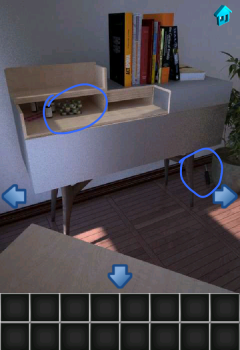
- 100 Rooms Level 32- Step 1
-
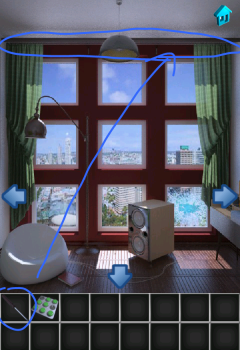
- 100 Rooms Level 32- Step 2
-
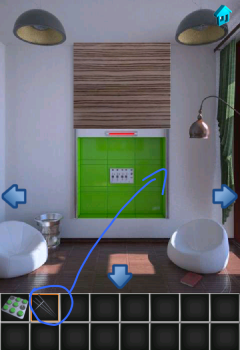
- 100 Rooms Level 32- Step 3
-
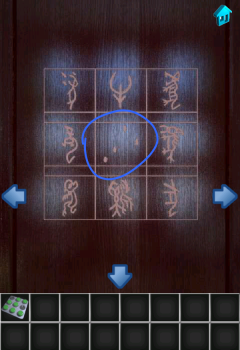
- 100 Rooms Level 32- Step 4
-
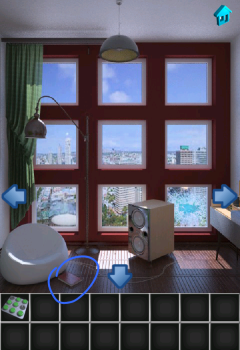
- 100 Rooms Level 32- Step 5
-
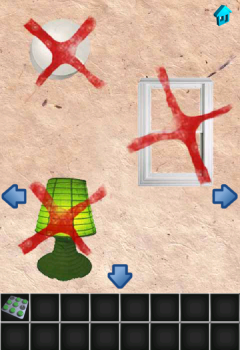
- 100 Rooms Level 32- Step 6
-

- 100 Rooms Level 32- Step 7
-
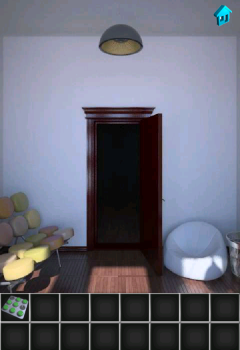
- 100 Rooms Level 32- Step 8
100 Rooms Level 33 Walkthrough
- Tap the umbrella holder near the door to get a stick.
- Go left and tap bottles until you get one with a key inside.
- Go left and use the bottle with key with water.
- Go left and put the bottle in the freezer.Go back and tap the freezer’s door again to get key.
- Go to the bottles area and use the key to open the drawer. Get knife.
- Go left and use the knife on the wines, then fill up 3 bottles with water.
- Go to the left and tap on the broken area on the wall over the table. Use the knife with the stick and put the stick there.
- Go back and put the three bottles with water on the scale.
- Go to the bottle area and tap the open safe. Use the wines with the middle and exit!
-
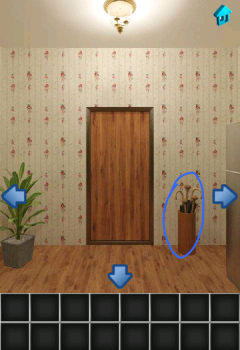
- 100 Rooms Level 33- Step 1
-
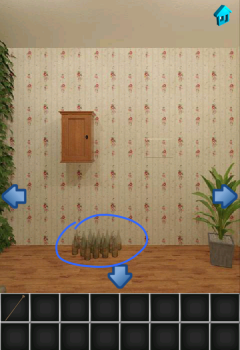
- 100 Rooms Level 33- Step 2
-
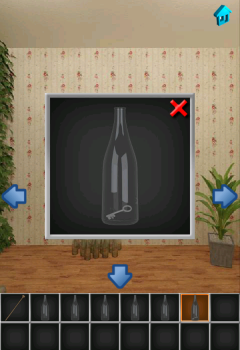
- 100 Rooms Level 33- Step 3
-
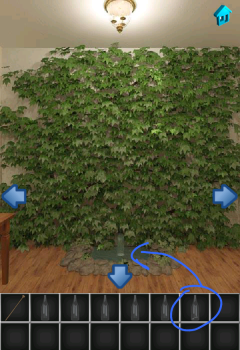
- 100 Rooms Level 33- Step 4
-
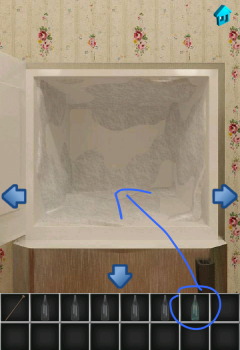
- 100 Rooms Level 33- Step 5
-
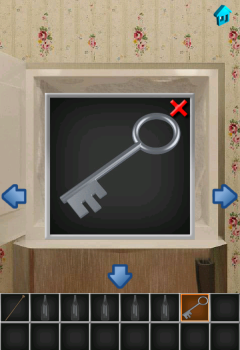
- 100 Rooms Level 33- Step 6
-
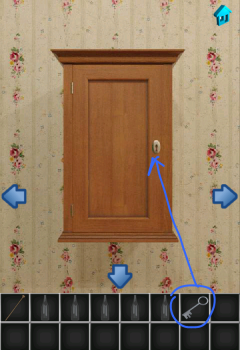
- 100 Rooms Level 33- Step 7
-
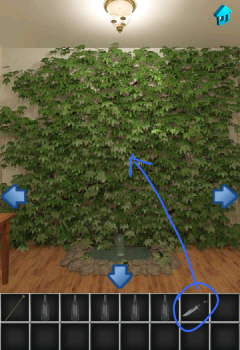
- 100 Rooms Level 33- Step 8
-
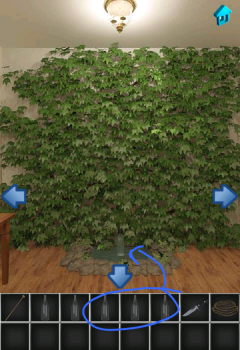
- 100 Rooms Level 33- Step 9
-
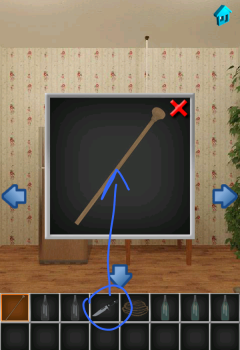
- 100 Rooms Level 33- Step 10
-
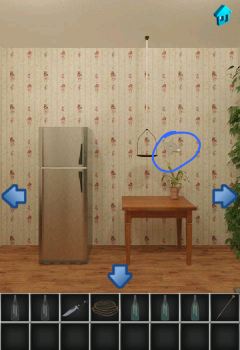
- 100 Rooms Level 33- Step 11
-
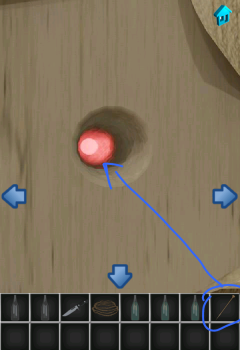
- 100 Rooms Level 33- Step 12
-
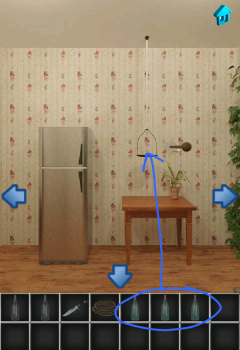
- 100 Rooms Level 33- Step 13
-
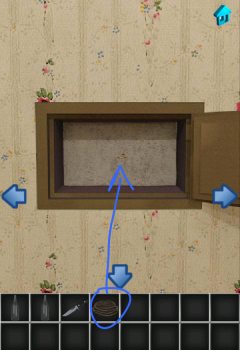
- 100 Rooms Level 33- Step 14
-
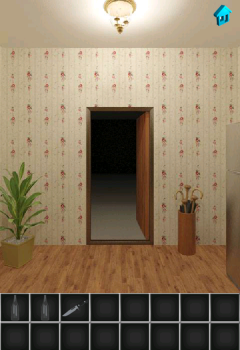
- 100 Rooms Level 33- Step 15
And this is it! You have both the 100 Rooms Level 32 walkthrough and the 100 Rooms Level 33 walkthrough here and I hope you had a great time completing these two new levels!


Download Minecraft PE 1.21.131 APK for Android
Minecraft Bedrock 1.21.131 is a focused hotfix update — improved Spear combat, two important bug fixes, and better overall stability on Android. No new content, but a noticeably smoother experience.
Spear Knockback Improvement
The window during which a charged Spear attack can apply knockback has been extended. This makes combat feel more reliable — the attack now connects as expected without requiring pinpoint timing, especially useful when fighting multiple mobs at once.
Spear Animation Alignment
Charge attack animations now accurately sync with the Spear’s three gameplay phases: Engaged, Tired, and Disengaged. What you see on screen now matches what the game engine is actually doing — making combat more readable and reducing guesswork in fights.
Performance & Stability
Frame drops on mid-range Android hardware have been reduced. Memory handling improvements prevent sudden freezes during long play sessions. World loading and chunk generation are more reliable, reducing terrain “pop-in” when exploring or moving quickly.
Multiplayer Improvements
Backend updates improve session stability when players join or leave. Fewer disconnects and smoother synchronisation across Bedrock servers. Marketplace content and add-ons also load more consistently during multiplayer sessions.
Adventuring Time Achievement Fixed — The achievement no longer unlocks early. It now correctly requires visiting at least 17 biomes on PC, matching the intended design.
Marketplace Escape Key Fixed — Pressing Escape after using the Marketplace search now reliably returns players to the previous menu instead of getting stuck in a loop.
Add-on World Loading Fixed — A bug that triggered a “Block” error when loading or creating worlds with multiple add-ons installed has been resolved.
Download the APK
Tap one of the Download buttons above. Choose the Standard (no music) version if storage is limited, or the Full version for the complete experience. The ARM64 build is recommended for modern phones.
Enable “Install Unknown Apps”
Go to Settings → Security (or Privacy) → Install unknown apps. Enable the permission for your browser or file manager. Android requires this for any APK installed outside Google Play.
Open the APK File
Open your Downloads folder, find the Minecraft 1.21.131 APK, and tap it to launch the system installer. Follow the on-screen prompts.
Install Over Existing Version
In most cases you can install 1.21.131 directly over your existing Minecraft without losing any worlds or progress. If you see a signature conflict error, uninstall first — but back up your worlds beforehand.
Launch and Sign In
Open Minecraft, sign in with your Microsoft/Xbox Live account, and your existing worlds will load normally. Online multiplayer, Realms, and Marketplace content all work as before.
Download Minecraft PE 1.20 APK for Android
Get the full Minecraft Bedrock 1.20 (Trails and Tales) APK for Android. Supports Xbox Live sign-in. Multiple versions available — stable releases and preview builds.
Download the APK File
Tap the Download button above for the version you want. The APK file will save to your device’s Downloads folder.
Enable “Install Unknown Apps”
Go to Settings → Security or Privacy → Install unknown apps. Enable it for your browser or file manager. Android requires this for any APK installed outside of Google Play.
Open the Downloaded File
Open your Downloads folder (or tap the notification), find the Minecraft APK, and tap it to start the installer.
Confirm Installation
Tap Install and wait for the process to complete. If you see a “signature conflict” error, uninstall your existing Minecraft version first, then retry.
Launch and Sign In with Xbox Live
Open Minecraft, sign in with your Microsoft/Xbox Live account to access multiplayer, Realms, and cross-platform features.
Game mods have become an essential part of modern gaming culture. Short for “modifications,” mods are user-created additions or changes to video games that can transform everything from graphics to gameplay mechanics. They breathe new life into older titles, fix issues developers never addressed, and sometimes create entirely new experiences from existing games.
LyncConf has emerged as a leading platform in the modding world, serving as a central hub where gamers can discover, download, and manage high-quality mods safely. Unlike scattered forums or risky download sites, LyncConf organizes thousands of mods, verifies their safety, and connects talented mod creators with millions of players looking to enhance their gaming experience.
What Are Lync Conf Game Mods?
Lync Conf game mods are modifications to video games that alter or expand various aspects of gameplay, performance, visuals, or features. These can range from simple tweaks like changing a character’s outfit to massive overhauls that introduce entirely new storylines, worlds, or game mechanics.
LyncConf plays a unique role in the modding ecosystem. Rather than just hosting files, it acts as a trusted curator and organizer. The platform verifies mods for safety, checks compatibility across game versions, and provides detailed descriptions so players know exactly what they’re installing. This bridges the gap between creative mod developers and gamers who want reliable, quality content without the headache of searching through countless unreliable sources.
The evolution of game mods has been remarkable. What started in the 1990s as simple texture swaps and level edits has grown into sophisticated projects. Today’s mods include complete game conversions, professional-quality voice acting, complex scripting, and graphics that rival or exceed the original game’s production values. Some popular mods have even inspired official game features or spawned entirely new games.
FIFA 13 Career Mode Guide: Best Young Players
Why Gamers Choose LyncConf Mods
Gamers flock to LyncConf for several compelling reasons that set it apart from other modding sources.
The platform’s curation process ensures quality control. Every mod undergoes verification checks for malware, compatibility issues, and stability. This means you can download with confidence, knowing you won’t accidentally install something that crashes your game or compromises your computer’s security.
The benefits of using LyncConf mods are extensive. Visual enhancements can transform outdated graphics into stunning modern visuals with improved textures, lighting, and weather effects. Gameplay mods add new missions, quests, weapons, characters, and entire storylines that extend a game’s lifespan by hundreds of hours. Interface customization options let you tailor menus, HUDs, and controls to your personal preferences. Performance optimization mods can make games run smoother on older hardware or push newer systems to their limits.
Comparing modded games to their vanilla (unmodded) versions reveals stark differences. A vanilla game offers the developer’s original vision, which can be excellent but eventually becomes familiar and limiting. Modded games, however, offer nearly unlimited variety. You can adjust difficulty levels precisely to your skill, add quality-of-life improvements the developers never considered, fix bugs that were never patched, and keep the game feeling fresh years after release. Many gamers find that mods turn good games into great ones and keep them playing titles they might have otherwise abandoned.
Offline to Online: Engaging Games that Offer the Best of Both Modes
Top LyncConf Mods for Popular Games (2026)
Visual & Graphics Enhancements
Graphics mods remain among the most popular downloads on LyncConf. These transformations can make older games look modern or push new releases to photorealistic levels.
High-definition texture packs replace low-resolution game assets with crisp, detailed alternatives. Imagine playing a game from 2015 but with textures that look like they were made yesterday. Everything from character faces to building walls to natural landscapes gets the upgrade treatment.
Realistic weather and lighting improvements add atmospheric depth that dramatically changes how games feel. Dynamic shadows that shift with time of day, volumetric fog that rolls through valleys, rain that actually looks wet rather than like falling lines—these details create immersion that vanilla games often lack.
Popular examples include Fallout 4 ENB mods that transform the post-apocalyptic wasteland with cinematic color grading and lighting. Skyrim weather systems like “Vivid Weathers” make each climate region feel distinct and alive. Cyberpunk 2077 receives 4K enhancement packs that sharpen every neon sign and rain-slicked street in Night City, making an already beautiful game absolutely stunning.
Gameplay Overhauls
While graphics get attention, gameplay mods often provide the most lasting value by fundamentally changing how games play.
Mechanics overhaul mods reimagine core systems. Combat might become more tactical and challenging, with enemies that dodge, flank, and coordinate attacks. Crafting systems might expand to include hundreds of new recipes. Survival elements could add hunger, thirst, and temperature management to games that never had them.
New weapon types, armor sets, and equipment vastly expand player options. Rather than choosing from 20 weapons, you might have 200, each with unique properties, upgrade paths, and visual designs. This variety keeps gameplay fresh through multiple playthroughs.
Smarter AI transforms how games challenge you. Enemies that learn from your tactics, allies that actually help effectively, and NPCs with more realistic behaviors make game worlds feel alive rather than scripted.
Balanced progression systems fix common issues where games become too easy or grindy. These mods adjust experience curves, loot drops, and difficulty scaling so you’re always appropriately challenged without frustration.
Top 10 Sports Games To Play On PC and Consoles
Editor’s Picks — Most Downloaded Mods
Based on LyncConf’s 2025 download statistics, here are the community favorites:
The Witcher 3: HD Reworked Project (graphics overhaul with 12 million+ downloads)
Skyrim Special Edition: Legacy of the Dragonborn (museum and collection mod with massive content additions)
Fallout 4: Sim Settlements 2 (transforms settlement building with autonomous NPC-driven towns)
Minecraft: Create Mod (adds industrial machinery and complex engineering systems)
Stardew Valley: Stardew Valley Expanded (doubles game content with new locations, characters, and storylines)
Grand Theft Auto V: NaturalVision Evolved (photorealistic graphics transformation)
Dark Souls III: Cinders (complete gameplay overhaul with new classes, spells, and balanced difficulty)
How to Install Lync Conf Game Mods Safely
Installing mods might seem intimidating at first, but following proper steps ensures a smooth, problem-free experience.
Choosing the Right Mod Manager
Mod managers are essential tools that organize your mods, handle installation, and prevent conflicts. Don’t try to install mods manually by dropping files into game folders—that path leads to chaos.
Vortex is beginner-friendly with an intuitive interface. It automates most processes and works with numerous games. It’s the best starting point for newcomers to modding.
Mod Organizer 2 (MO2) offers advanced features for experienced users. It creates virtual file systems so mods never actually overwrite game files, making it easier to troubleshoot issues and switch between mod setups.
CurseForge specializes in games like Minecraft and World of Warcraft, with streamlined one-click installations for supported titles.
Choose based on your experience level and which games you’re modding. Most serious modders eventually use different managers for different games.
Harmonicode Gaming: Revolutionizing Performance and Player Experience
Installation Steps
Step 1: Download and Install Your Mod Manager
Visit the mod manager’s official website, download the installer, and follow the setup wizard. Most managers will automatically detect your installed games.
Step 2: Create a Mod Profile
Profiles let you maintain different mod setups. You might have a “vanilla plus” profile with just graphics improvements and a “full overhaul” profile with gameplay changes. This prevents conflicts and lets you switch between experiences easily.
Step 3: Download Mods from LyncConf
Browse LyncConf’s catalog, read mod descriptions carefully, and check the “Requirements” section. Click the download button, which will typically offer a “Download with Mod Manager” option that automatically adds the mod to your manager.
Step 4: Check Dependencies and Compatibility
Many mods require other mods to function. Your mod manager usually highlights missing dependencies. Install these first, then activate your desired mod. Also check the mod’s compatibility notes—some mods conflict with others and shouldn’t be used together.
Step 5: Arrange Load Order
Load order determines which mods take priority when multiple mods change the same game elements. Your mod manager provides tools to arrange this, and many have automatic sorting features.
Step 6: Launch and Test
Start your game through the mod manager (not the normal game launcher). Test that everything works as expected. If issues arise, you can disable mods one at a time to identify the problem.
Troubleshooting Common Issues
Load Order Problems: If certain mods aren’t working or you’re experiencing crashes, the load order may need adjustment. Tools like LOOT (Load Order Optimization Tool) can automatically sort mods into optimal order for many games.
Dependency Conflicts: Sometimes two mods try to change the same game file in incompatible ways. Check mod descriptions for known conflicts, and when in doubt, disable one of the conflicting mods to see if that resolves the issue.
Missing Assets or Textures: This usually means a required dependency wasn’t installed. Re-read the mod description’s requirements section carefully and install any missing pieces.
Game Won’t Launch: Start by disabling all mods to ensure your base game works. Then enable mods in small groups to identify which one causes the problem.
Where to Get Help: LyncConf’s community forums are excellent resources. Most mods also have comment sections where users share solutions. Reddit communities dedicated to specific games or modding in general (like r/modding) provide helpful troubleshooting support. Many games also have Discord servers where experienced modders answer questions in real-time.
Essential Tools & Platforms for Modding
Beyond mod managers, several specialized tools make the modding experience smoother and more stable.
LOOT (Load Order Optimization Tool) automatically sorts your mods into the optimal load order based on a master list maintained by the modding community. It prevents conflicts and ensures mods load in the correct sequence. Essential for games like Skyrim or Fallout with dozens of mods.
xEdit (also known as SSEEdit, FO4Edit, etc., depending on the game) lets you view and edit game files to resolve conflicts between mods. Advanced users can merge mods, clean dirty edits, and create compatibility patches.
ENB Manager helps you organize and switch between different ENB presets (advanced graphics mods). Instead of manually swapping files, you can change your entire visual setup with a few clicks.
SKSE, F4SE, and Other Script Extenders expand what mods can do by adding new scripting functions. Many advanced mods require these as dependencies. They’re safe community tools that have been thoroughly tested.
BodySlide and Outfit Studio let you customize character body and clothing models. Useful for games where appearance matters and you want everything to work together visually.
BethINI optimizes game INI configuration files for better performance and stability, particularly helpful when running many graphics mods.
These tools might seem excessive at first, but as you get deeper into modding, they become invaluable for creating stable, personalized game experiences.
Community & Collaboration
The modding community represents one of gaming’s most creative and collaborative spaces, and LyncConf serves as a major gathering point for this community.
LyncConf’s forums host thousands of discussions where modders share techniques, troubleshoot issues, and announce new projects. You’ll find guides written by experienced users, feedback threads for mods in development, and showcase areas where creators present their work.
Discord servers connected to LyncConf provide real-time communication. Whether you need quick help with an installation problem or want to chat with others who share your passion for a particular game, these communities offer immediate support and camaraderie.
Reddit threads like r/LyncConfMods (if available) aggregate news, showcase impressive mod combinations, and provide another avenue for discussion. Many individual games also have their own modding subreddits where LyncConf content gets shared and discussed.
For aspiring mod creators, LyncConf offers pathways to recognition and support. The platform lets you submit your own mods for review and publication. Successful creators gain exposure, receive donations from appreciative users, and sometimes even attract attention from professional game studios. Many professional game developers started as hobbyist modders.
The collaborative spirit extends to mod compatibility projects, where creators work together to ensure their mods function well alongside others. Translation teams localize mods for different languages. Testing groups volunteer to find bugs before public release. This cooperative approach benefits everyone in the ecosystem.
Latest Updates from LyncConf (2025)
LyncConf continues evolving with new features that make modding more accessible and reliable.
Automated Conflict Detection now scans your mod list before installation and warns about potential incompatibilities. This AI-powered system checks against a database of known conflicts, saving you from game-breaking combinations.
Smart Install Suggestions recommends complementary mods based on what you’ve already installed. If you download a graphics overhaul, the system might suggest compatible lighting mods or performance optimizers that work well together.
Enhanced Patch Notes now appear directly in the mod manager, showing exactly what changed between versions. This transparency helps you decide whether to update immediately or wait for further stability improvements.
Version Compatibility Guidance automatically checks which mods work with your current game version. When games update, this feature prevents you from installing outdated mods that might cause crashes.
2025 Roadmap Highlights reveal exciting developments coming soon:
Cross-Platform Syncing will let you access your mod profiles across multiple devices. Start modding on your desktop, then continue tweaking your setup from a laptop while traveling.
Console Support Expansion aims to bring more PC mods to console versions where possible, working within console manufacturers’ restrictions. While consoles will never have the freedom of PC modding, LyncConf is pushing to maximize what’s available.
Creator Monetization Tools will help mod developers earn sustainable income through optional supporter subscriptions, similar to Patreon but integrated directly into the platform.
VR Mod Optimization specifically flags and optimizes mods for virtual reality gaming, ensuring compatibility with VR hardware and controllers.
FAQs
Can LyncConf mods be used on consoles?
Limited options exist for consoles. Xbox and PlayStation have built-in mod support for certain games, but these use restricted versions with fewer capabilities than PC mods. LyncConf primarily focuses on PC modding, though they’re working to expand console compatibility where manufacturers allow it. Check individual game pages for console-specific mod availability.
Are these mods safe?
LyncConf implements rigorous safety checks on all hosted mods. Each file undergoes virus scanning, code review for malicious content, and community reporting systems. While no platform can guarantee 100% safety, LyncConf’s verification process makes it one of the safest sources for game modifications. Always download from official LyncConf links rather than third-party mirrors.
How does LyncConf compare with other mod platforms like Nexus Mods or Steam Workshop?
Each platform has strengths. Nexus Mods offers the largest overall library and has been around longest, making it the go-to for certain games. Steam Workshop provides seamless integration with Steam games through one-click installations. LyncConf differentiates itself through superior curation, advanced conflict detection, and a more modern interface. Many experienced modders use multiple platforms—Nexus for variety, Steam Workshop for convenience, and LyncConf for curated quality and safety. They complement rather than compete with each other.
Do mods disable achievements?
This depends on the game. Some games disable achievements when any mods are detected. Others allow mods without penalty. There are also achievement enabler mods for many games that restore achievements even when using modifications. Check your specific game’s policies and look for achievement-related mods on LyncConf if this matters to you.
Will mods break when my game updates?
Sometimes. Major game updates can make certain mods incompatible, especially those that rely on script extenders or modify core game files. LyncConf’s version compatibility system helps prevent these issues by warning you before installing outdated mods. When your game updates, check mod pages for updated versions before launching with your full mod list.
Can I use LyncConf mods alongside mods from other sources?
Yes, but carefully. Mod managers can handle files from multiple sources. However, ensure mods don’t conflict regardless of their origin. Read compatibility notes, check for duplicates, and test your setup thoroughly. The automated conflict detection helps identify issues across all your mods, regardless of source.
Conclusion
LyncConf game mods represent the cutting edge of player-driven gaming innovation. By providing a safe, organized, and community-focused platform, LyncConf makes the world of game modifications accessible to everyone from curious beginners to veteran enthusiasts.
The value proposition is clear: transform your gaming library into something uniquely yours. Fix that one annoying bug developers never addressed. Add hundreds of hours of new content to your favorite game. Make a decade-old title look and play like it launched yesterday. Connect with a passionate community of creators and players who share your interests.
Whether you’re looking to enhance graphics, overhaul gameplay, or simply make your gaming experience more convenient, LyncConf offers curated, verified mods that deliver results without the risks associated with unverified sources.
For gamers in 2025, the question isn’t whether to use mods—it’s which incredible modifications you’ll try first. With LyncConf’s comprehensive catalog, intuitive tools, and supportive community, you’re equipped to dive into the limitless possibilities of modded gaming. Your games will never be the same, and that’s exactly the point.
-
 Guides6 years ago
6 Proven Ways to Get more Instagram Likes on your Business Account
-
Mainstream11 years ago
BioWare: Mass Effect 4 to Benefit From Dropping Last-Gen, Will Not Share Template With Dragon Age: Inquisition
-
 Mainstream7 years ago
How to Buy Property & Safe Houses in GTA 5 (Grand Theft Auto 5)
-

 Guides2 years ago
Free Fire vs PUBG: Comparing Graphics, Gameplay, and More
-

 Guides1 year ago
50+ Free Fire ID and Passwords Login List (Giveaway) 2025
-
 Casual3 years ago
8 Ways to Fix Over-Extrusion and Under-Extrusion in 3D Printing
-

 Other2 years ago
Ajjubhai UID: Free Fire Details & Earnings
-

 Features2 years ago
Exploring Valorant eSports Stats: Unveiling the Metrics Behind Competitive Excellence
billy
September 25, 2012 at 2:13 pm
When i get to the sliding door it stops working
billy
September 25, 2012 at 2:14 pm
When i get to the sliding door it stops working.