
Guides
Xmas Toy Room Escape – Walkthrough

**********************************************
XMAS TOY ROOM ESCAPE – WALKTHROUGH
**********************************************
NOTE: In order to get to the other side of the Room, simply click on the Door on Middle Right-Side of the Screen. To get back to the 1st Room, simply click on Left-Side Door!
Walkthrough:
1. You see the 4 Holes on the Left-Side of the Wall in middle. Look at the Bottom Hole, and take Santa Sleigh/Chariot!
2. Look near the Right-Side of the Floor, and you’ll see a Train Track. Click on it to zoom in, and put the pieces in correct order to get a Key. And zoom out!
HELP WITH TRAIN TRACK: You see the Black/Green Train on Top-Left side of the Track. Find the piece which is Straight on it’s top half-side, and a litte bit bended to the right, on it’s bottom half-side. Put that Piece on the Bottom of where the Train is. If correctly done, the piece will fit. And you can easily find the next correct piece!
3. Look at the 2 Middle Holes on Wall. Next to them, there is a Santa Claus Toy. Click on that Toy to zoom in [The Toy is on Bottom-Left corner once zoomed in]! Click on the Santa Claus Toy to turn it around. Take the Key at the Middle of the Toy’s Belt, and zoom out!
4. Move Right [To Room 2]! Look above the Grabber Arcade Machine [Red color with Teddy Bear inside], and you’ll see a Red/Orange car. Click to zoom in the Car, and use Key from Santa Claus Toy, on the Car’s Back (Help below). Take Reindeer, and zoom out!
HELP WITH CAR KEY: Look at the back of the Car once zoomed in. Look at the Silver Part on bottom of car. The Silver part, to the right of the Wheel that is farthest from you. Then, look at the Window at the back of the car. Use the Key between the Silver Part and the Window!
5. Look at the Nutcracker Toys [Wooden Toy Soldiers], next to the Car Toy. Note the Colors of the Uniforms, of the Nutcracker Toys on 1st Line [Yellow, Blue, Red, Green, Pink]! Move Left [To Room 1]. Look at the Sofa/Chair on Floor, and you’ll see a Box over it (Jack in the Box). Click to zoom in, and use Key from Train Track, on the Right-Side of the Box (Instructions below). Change the Colors of the Dots on Hat, into these colors from Left to Right: YELLOW | BLUE | RED | GREEN | PINK
Once done, note the code you’ll get: 3251 – and zoom out!
HELP WITH WHERE TO PUT KEY ON BOX: You see the Picture of a Clown with White Shirt with Red Stripes, and Blue & Yellow Balls. Look to the right of the Picture, and you’ll slightly see a Blue Circle. Use the Key on that Blue Circle!
6. Move Right [To Room 2]! Click on Tower Of Hanoi [Below Nutcracker Toys, the Toy with 4 Sticks and colorful rings], to zoom in. You remember the code, 3 2 5 1 – use it here by placing the Rings in the Sticks in this order from Left to Right (Help on Placing Rings inside stick, at the end of this step):
Remember that the Color of the Rings doesn’t matter!
Put 3 Rings on Stick #1
Put 2 Rings on Stick #2
Put 5 Rings on Stick #3
Put 1 Rings on Stick #4
Once done, look below Stick #2, and take Key. Zoom out!
HELP WITH PUTTING RING INSIDE STICK: Drag any ring, and release on Top of the Stick you want the Ring to be inside
7. Move Left [To Room 1]! Click on Orange Robot near Top-Right side of the screen, to zoom in. Click on the Robot’s Head/Chest to turn it around, and look near the Bottom-Right side of the Robot’s Stomach/Belly, and you’ll see a small Keyhole. Use Key from Tower Of Hanoi on Robot, and take Green Button from inside. And zoom out!
8. Move Right [To Room 2]! Click on the Nutcracker Toy Army [Near the Middle of Screen], to zoom in. Look at the Middle Nutcracker Toy on 1st Line [The one with Red Uniform]. If you look at the Nutcracker’s Right-Side Shoulder [From our Point of View], you’ll see that he/it is missing the shoulder. Put the Green Button on his/it’s Right-Side shoulder, take Sword, and zoom out!
9. Look at the Yellow Cupboard on Right-Side. Click on the Red Box on the Cupboard, to zoom in! Click on the Red Box, and a Toy will come out of it. Note the Colors on the Toys hat [Green, Pink, Blue, Red/Orange, Yellow], and zoom out!
10. Move Left [To Room 1]! Click on the Rocking Horses on Top of Screen, to zoom in. Place them in this order by their colors, from Left to Right (Instructions on how to change Horses on the end of this step): GREEN | PINK | BLUE | RED/ORANGE | YELLOW
Look at the Button in middle of the Horses and the Robot. Use Sword on that Button, once done with placing the Horses in correct order. Zoom out!
HELP WITH CHANGING HORSE: Simply click on one of the Horses, and then click another Horse to change places with it. If there are 3 Horses, and their colors are Red, Blue, Yellow. You can click on the Yellow Horse once (nothing will happen), and then click on the Red Horse. The Yellow Horse will be on the Spot where the Red Horse was, and the Red Horse on Yellow Horse’s spot
11. Look at the 2nd Hole on Wall [One below the Top Hole on Left-Side of Wall ahead], and click on the 3 Santa Claus Toys to zoom in! Look at the Right-Side Santa Claus Toy. Look on the Toy’s Chest Pocket, and you’ll see 2 small sticks. Click to take Drum Sticks, and zoom out!
12. Click on the Drummer Toys on Wall [Below the Robot], to zoom in. Look at the smallest Drummer (Purple Uniform), and you’ll see that he is missing Drum Sticks. Give him the Drum Sticks from Santa Claus Toy, and change their order to the following, from Left to Right (Help changing at the end of step): TALLEST (GREEN) | TALL (RED) | SHORT (BLUE) | SHORTEST (PURPLE)
Once done, take Santa Claus Toy next to the Shortest Drummer, and zoom out!
HELP WITH CHANGING DRUMMERS: It’s the same as changing the Horses. Look at the end of Step #10 – but picture the text with Drummers instead of Horses
13. Look below the Bottom Hole on Wall, and you’ll see something that looks like a Table, but it’s made of the same Material as the Wall. Click to zoom in, and put Sleigh/Chariot on Table. Put Reindeer in front of it, and then Santa Claus inside Sleigh/Chariot. Zoom out!
14. Move Right [To Room 2]! Click on Yellow Cupboard on Right-Side, to zoom in. Click on Top-Left drawer to open it, take Magnifier (Hand Lens). Zoom out!
15. Move Left [To Room 1]! Click on Water Globe on Top Hole, to zoom in. Click on Magnifier (Hand Lens) in your Inventory, and simply move it around the Water Globe without clicking. You’ll find some Letters, from Left to Right: R C H S I T = C H R I S T
Zoom out, and click on the 2 Water Globes on Hole #3, to zoom in! Click on Magnifier (Hand Lens) in your Inventory, and simply move it around on Left-Side Globe, without clicking. You’ll find these Numbers from Left to Right: 1 2 5 2 0 9 = 2 5 1 2 0 9 (25/12/09 – 25th December 2009)
Zoom out!
16. Move Right [To Room 2]! Click on the Play Blocks on Middle Top of Screen, to zoom in. Change the Numbers and Letters on the Blocks in this order:
– LEFT-SIDE BLOCKS –
2 C
5 H
1 R
– RIGHT-SIDE BLOCKS –
2 I
0 S
9 T
Once done, click on Red Box in middle to open it (It will only open if done correctly). Take Bell, and zoom out!
17. Click on the Grabber Arcade Machine (Red Color with Teddy Bears inside), to zoom in! There are 8 Squares you can click on and change their colors. Change the Colors by looking at the Teddy Bears from Right to Left, and High to Low, or follow me:
– Left-Side Column –
BROWN
PINK
BLUE
PURPLE
– Right-Side Column –
GREEN
WHITE
YELLOW
RED
The Red one is behind the Purple, and not Above it!
Once done, pull the Blue Lever, take Red Santa Bag [You have to click on Top of it, to take it], and zoom out!
18. Move Left [To Room 1]! Click on the 3 Santa Toys on Hole #2, to zoom in. Look on the wall beind the Toys, and you’ll see a Reindeer Footprint. Zoom out, and look on Floor, next to the Sofa/Chair, and you’ll find another Reindeer Footprint! Count all the Reindeers on Shelf (Below the Drummers). You’ve got 2 Footprints & 5 Reindeers!
19. Move Right [To Room 2]! Click on the Yellow Cupboard on Right-Side, to zoom in. You’ll find the last Footprint on top of Cupboard, Left-Side. Zoom out! Click on the Clown with Wheels on Middle of Floor, to zoom in (Purple/Yellow). You see the 2 Black Squares on each of the Boxes (Boxes: Purple & Yellow). Click on Purple Box’s Black Square, and type 5 (There were 5 Reindeers on Shelf in total). Click on Yellow Box’s Black Square, and type 3 (There were 3 Reindeer Footprints in total). Take the Red Ball from inside Yellow Box, and zoom out!
20. Move Left [To Room 1]! Click on the Table where the Put the Sleigh/Chariot, Reindeer & Santa Toy, to zoom in [Below bottom Hole]. You see the 2 Marks on the Santa Sleigh/Chariot, the Bell / Ball. From your Inventory, place the Bell & Ball on the Santa Sleigh/Chariot. Give Santa Bag to Santa Claus Toy, and you’ve Escaped!
I really hope this Walkthrough is helpful, as I spent so much time and put alot of effort in it. Please do enjoy playing the game, and reading this walkthrough and tell me your thoughts :D
Type: Extremely Detailed Walkthrough | Help Notes | 20-Steps
Time Used: 2 Hours
Written By: Prid

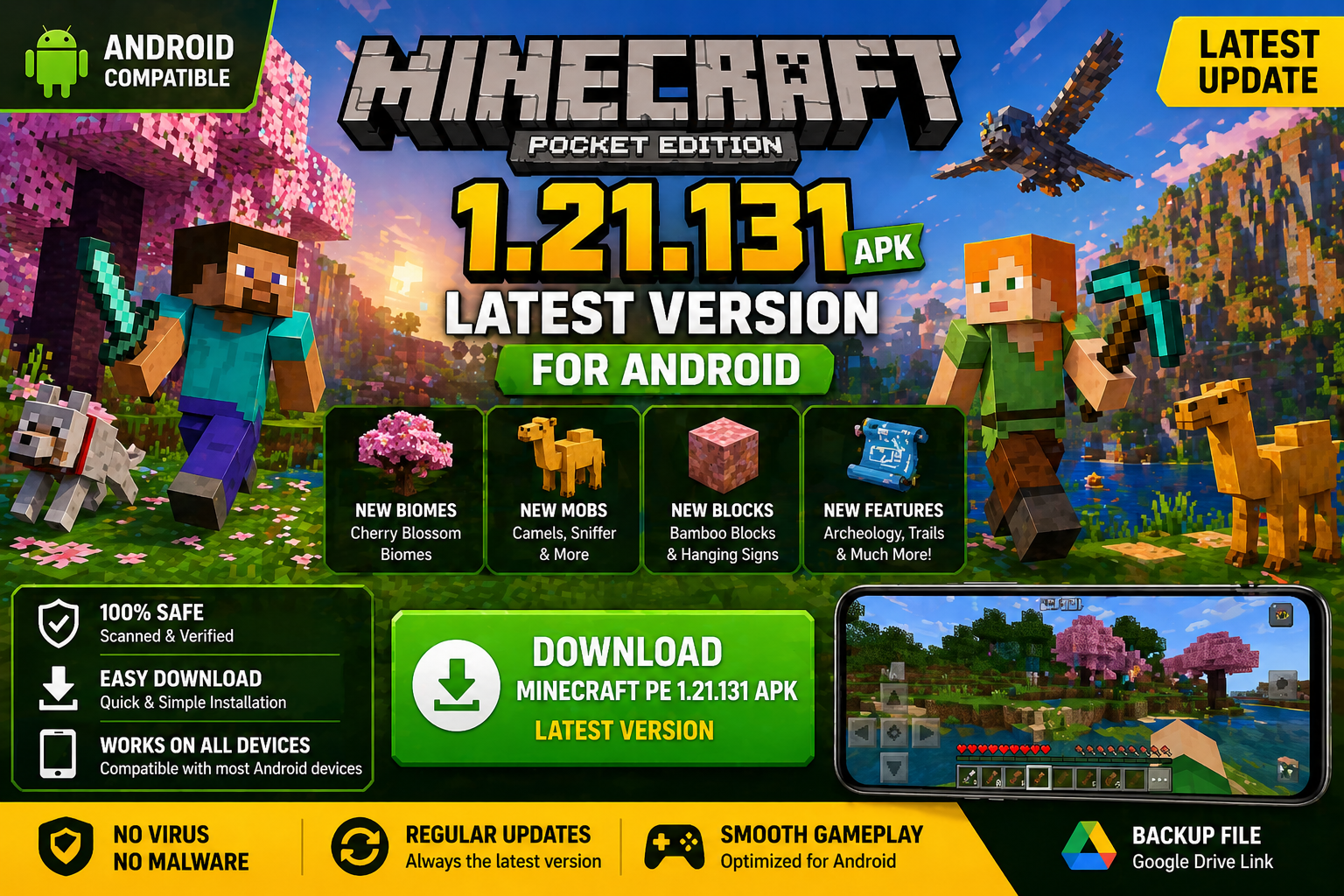
Download Minecraft PE 1.21.131 APK for Android
Minecraft Bedrock 1.21.131 is a focused hotfix update — improved Spear combat, two important bug fixes, and better overall stability on Android. No new content, but a noticeably smoother experience.
Spear Knockback Improvement
The window during which a charged Spear attack can apply knockback has been extended. This makes combat feel more reliable — the attack now connects as expected without requiring pinpoint timing, especially useful when fighting multiple mobs at once.
Spear Animation Alignment
Charge attack animations now accurately sync with the Spear’s three gameplay phases: Engaged, Tired, and Disengaged. What you see on screen now matches what the game engine is actually doing — making combat more readable and reducing guesswork in fights.
Performance & Stability
Frame drops on mid-range Android hardware have been reduced. Memory handling improvements prevent sudden freezes during long play sessions. World loading and chunk generation are more reliable, reducing terrain “pop-in” when exploring or moving quickly.
Multiplayer Improvements
Backend updates improve session stability when players join or leave. Fewer disconnects and smoother synchronisation across Bedrock servers. Marketplace content and add-ons also load more consistently during multiplayer sessions.
Adventuring Time Achievement Fixed — The achievement no longer unlocks early. It now correctly requires visiting at least 17 biomes on PC, matching the intended design.
Marketplace Escape Key Fixed — Pressing Escape after using the Marketplace search now reliably returns players to the previous menu instead of getting stuck in a loop.
Add-on World Loading Fixed — A bug that triggered a “Block” error when loading or creating worlds with multiple add-ons installed has been resolved.
Download the APK
Tap one of the Download buttons above. Choose the Standard (no music) version if storage is limited, or the Full version for the complete experience. The ARM64 build is recommended for modern phones.
Enable “Install Unknown Apps”
Go to Settings → Security (or Privacy) → Install unknown apps. Enable the permission for your browser or file manager. Android requires this for any APK installed outside Google Play.
Open the APK File
Open your Downloads folder, find the Minecraft 1.21.131 APK, and tap it to launch the system installer. Follow the on-screen prompts.
Install Over Existing Version
In most cases you can install 1.21.131 directly over your existing Minecraft without losing any worlds or progress. If you see a signature conflict error, uninstall first — but back up your worlds beforehand.
Launch and Sign In
Open Minecraft, sign in with your Microsoft/Xbox Live account, and your existing worlds will load normally. Online multiplayer, Realms, and Marketplace content all work as before.
Download Minecraft PE 1.20 APK for Android
Get the full Minecraft Bedrock 1.20 (Trails and Tales) APK for Android. Supports Xbox Live sign-in. Multiple versions available — stable releases and preview builds.
Download the APK File
Tap the Download button above for the version you want. The APK file will save to your device’s Downloads folder.
Enable “Install Unknown Apps”
Go to Settings → Security or Privacy → Install unknown apps. Enable it for your browser or file manager. Android requires this for any APK installed outside of Google Play.
Open the Downloaded File
Open your Downloads folder (or tap the notification), find the Minecraft APK, and tap it to start the installer.
Confirm Installation
Tap Install and wait for the process to complete. If you see a “signature conflict” error, uninstall your existing Minecraft version first, then retry.
Launch and Sign In with Xbox Live
Open Minecraft, sign in with your Microsoft/Xbox Live account to access multiplayer, Realms, and cross-platform features.
-
 Guides7 years ago
6 Proven Ways to Get more Instagram Likes on your Business Account
-
Mainstream12 years ago
BioWare: Mass Effect 4 to Benefit From Dropping Last-Gen, Will Not Share Template With Dragon Age: Inquisition
-
 Mainstream8 years ago
How to Buy Property & Safe Houses in GTA 5 (Grand Theft Auto 5)
-

 Guides2 years ago
Free Fire vs PUBG: Comparing Graphics, Gameplay, and More
-

 Guides2 years ago
50+ Free Fire ID and Passwords Login List (Giveaway) 2025
-
 Casual3 years ago
8 Ways to Fix Over-Extrusion and Under-Extrusion in 3D Printing
-

 Other2 years ago
Ajjubhai UID: Free Fire Details & Earnings
-

 Features2 years ago
Exploring Valorant eSports Stats: Unveiling the Metrics Behind Competitive Excellence