
Guides
How to Edit a Sim in Sims 4?

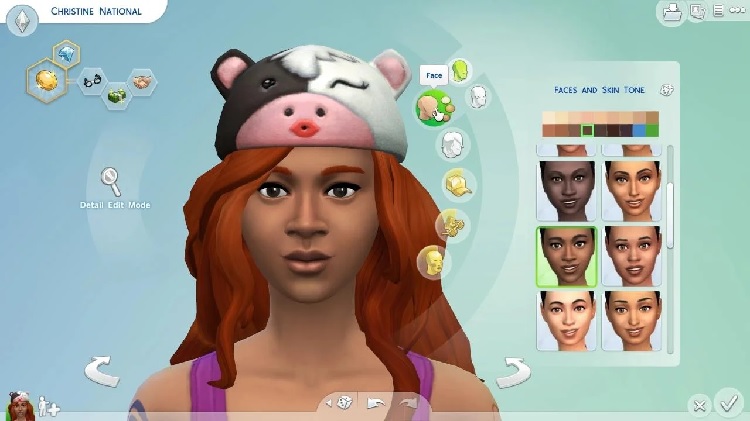
As human beings, we like personalization. We live by adding our individual touch and twists to things, so it isn’t surprising that the same applies to editing a Sim in Sims 4.
However, the basic “Change Sim” function in Sims 4 will only change some cosmetic elements of your Sim. It doesn’t make any changes to the facial features. So, to get a much more in-depth edit, you’d need to use The Sims CAS edit cheat.
If you are new to Sims 4 and don’t know how to use these cheats and implement them in the game, this article should give you all the answers.
Also Read – Extreme Violence Mod Sims 4: Download, Install & Play
What is Sims 4 CAS Full Edit Mode?
Sims is all about simulation and realism. So, to introduce a more personal touch to your character in the game, you need to accept the Sims 4 full edit mode.
Access to this edit allows the players to customize different elements and features of the Sim according to their vision.
The easiest way to access this mod is by enabling the Sims 4 CAS cheat code. You need to follow through with specific instructions to enable this cheat and implement the customizations per your requirements.
If you have created a Sim and a particular trait is putting you off, Sims 4 full edit mode enables you to introduce those changes at your convenience.
Besides that, the full edit mode also allows the Sims to tweak the age of the Sim. You can make them older or younger, as per your preference. This is handy for the creator when creating a new storyline in the game.
How to Enable Cheats?
If you haven’t used cheats in Sims, the first thing you need to do is enable cheats.
The process is pretty simple and involves opening the cheat console and then adding your designated cheat code.
To enable it, open the cheat console by pressing Ctrl + Shift + C on your PC or Mac. This will open the cheat dialogue box. Under that, you’d need to enter the designated cheat code you wish to enjoy, and then press Enter to apply the cheat.
Also Read – Sims 4 Death Cheats 2022: Cheats to Kill Your Sim
How to Use Sims 4 CAS Full Edit Mode on PC?
Now that you know about the CAS full edit mode and enabling cheats let us look into using the full edit mode cheat in Sims 4.
To be fair, the steps aren’t as complicated. What we’d recommend you do is open the Cheat Console first, as mentioned above.
In the dialogue box, type “testingcheats on.” This will activate all the working cheats in Sims 4 and allow you to make the most out of the game.
To access the CAS Full Edit Mode, you must enter “cas.fulleditmode” in the dialogue box. Once you do that, you need to hold down on shift and click on the character you wish to edit in the game.
Under that, an edit option pops up. All you have to do is enter what kinds of changes you wish to introduce and press down on Enter.
If you want a quick rundown of all the steps to use the Sims 4 CAS Full Edit mode, here’s what you need to do:
- Open the Cheat Console on Sims 4 by pressing down on Ctrl + Shift + C on your Mac or PC.
- Next, type “testingcheats on” in the dialogue box of the cheat console.
- Following that, type “cas.fulleditmode”.
- Once done, hold the shift button while you click on the Sim you wish to edit.
- You can then actively edit in the CAS option as per your requirements.
That’s a quick and easy rundown of all the steps involved in using the full edit mode on Sims 4. What kind of edits you introduce to your character depends entirely on you. So, choose them according to your needs.
How to Use Sims 4 CAS Full Edit Mode on PS4 and Xbox One?
Now that you have a better understanding of using the Sims 4 CAS Full Edit Mode on PC let us walk you through the steps on PS4 and Xbox One.
To be fair, the steps aren’t as very from the full edit mode on PC, so let us walk you through the steps individually.
Using Sims 4 CAS Full Edit mode for PS4
- In your dualshock controller, press down on the L1, R1, L2, and R2 keys. This will open the Cheat Console.
- In the Cheat Console, press down on the X key in your controller.
- In the console, type “testingcheats true” and press the X key.
- Follow this up by typing “cas.fulleditmode”. This will activate the feature and then close the console entirely.
- Once all this is done, press down on the O and X keys in your controller and select “Modify in CAS” to edit your Sims character.
Using Sims 4 CAS Full Edit mode for Xbox One
- Hold down on L1, L2, R1, and R2 in your Xbox One controller to open the Cheat Console on the screen.
- Type “testingcheats true” and enable this feature using the joystick on the screen.
- Once again, open the Cheat Console, type “cas.fulleditmode” and click on the selection.
- You can then go ahead and close the cheat console once you’re done.
- Once your Sims 4 cheat mode is enabled, you get complete autonomy to go ahead and edit your Sim by pressing the B and A buttons on your Xbox One. Follow this up by selecting “Modify on CAS.”
These simple steps allow you to edit your Sim on Sims 4 using the CAS Fill Edit mode on PS4 and Xbox One.
Also Read- Sims 4 Toddler Cheats, Skills (100% Tested & Working)
Conclusion
And that’s all you need to know about using the CAS Full Edit feature to edit your Sims in Sims 4. Since these cheats are popular and mainstream, implementing them allows you to make the most of your character. As a player, you have complete autonomy to change what’s working and what isn’t in the player, which is always a fun thing.
Image Source – https://oyster.ignimgs.com/mediawiki/apis.ign.com/the-sims-4/9/95/Sims4-004.jpg





Download Minecraft PE 1.21.131 APK for Android
Minecraft Bedrock 1.21.131 is a focused hotfix update — improved Spear combat, two important bug fixes, and better overall stability on Android. No new content, but a noticeably smoother experience.
Spear Knockback Improvement
The window during which a charged Spear attack can apply knockback has been extended. This makes combat feel more reliable — the attack now connects as expected without requiring pinpoint timing, especially useful when fighting multiple mobs at once.
Spear Animation Alignment
Charge attack animations now accurately sync with the Spear’s three gameplay phases: Engaged, Tired, and Disengaged. What you see on screen now matches what the game engine is actually doing — making combat more readable and reducing guesswork in fights.
Performance & Stability
Frame drops on mid-range Android hardware have been reduced. Memory handling improvements prevent sudden freezes during long play sessions. World loading and chunk generation are more reliable, reducing terrain “pop-in” when exploring or moving quickly.
Multiplayer Improvements
Backend updates improve session stability when players join or leave. Fewer disconnects and smoother synchronisation across Bedrock servers. Marketplace content and add-ons also load more consistently during multiplayer sessions.
Adventuring Time Achievement Fixed — The achievement no longer unlocks early. It now correctly requires visiting at least 17 biomes on PC, matching the intended design.
Marketplace Escape Key Fixed — Pressing Escape after using the Marketplace search now reliably returns players to the previous menu instead of getting stuck in a loop.
Add-on World Loading Fixed — A bug that triggered a “Block” error when loading or creating worlds with multiple add-ons installed has been resolved.
Download the APK
Tap one of the Download buttons above. Choose the Standard (no music) version if storage is limited, or the Full version for the complete experience. The ARM64 build is recommended for modern phones.
Enable “Install Unknown Apps”
Go to Settings → Security (or Privacy) → Install unknown apps. Enable the permission for your browser or file manager. Android requires this for any APK installed outside Google Play.
Open the APK File
Open your Downloads folder, find the Minecraft 1.21.131 APK, and tap it to launch the system installer. Follow the on-screen prompts.
Install Over Existing Version
In most cases you can install 1.21.131 directly over your existing Minecraft without losing any worlds or progress. If you see a signature conflict error, uninstall first — but back up your worlds beforehand.
Launch and Sign In
Open Minecraft, sign in with your Microsoft/Xbox Live account, and your existing worlds will load normally. Online multiplayer, Realms, and Marketplace content all work as before.
Download Minecraft PE 1.20 APK for Android
Get the full Minecraft Bedrock 1.20 (Trails and Tales) APK for Android. Supports Xbox Live sign-in. Multiple versions available — stable releases and preview builds.
Download the APK File
Tap the Download button above for the version you want. The APK file will save to your device’s Downloads folder.
Enable “Install Unknown Apps”
Go to Settings → Security or Privacy → Install unknown apps. Enable it for your browser or file manager. Android requires this for any APK installed outside of Google Play.
Open the Downloaded File
Open your Downloads folder (or tap the notification), find the Minecraft APK, and tap it to start the installer.
Confirm Installation
Tap Install and wait for the process to complete. If you see a “signature conflict” error, uninstall your existing Minecraft version first, then retry.
Launch and Sign In with Xbox Live
Open Minecraft, sign in with your Microsoft/Xbox Live account to access multiplayer, Realms, and cross-platform features.
-
 Guides7 years ago
6 Proven Ways to Get more Instagram Likes on your Business Account
-
Mainstream12 years ago
BioWare: Mass Effect 4 to Benefit From Dropping Last-Gen, Will Not Share Template With Dragon Age: Inquisition
-
 Mainstream8 years ago
How to Buy Property & Safe Houses in GTA 5 (Grand Theft Auto 5)
-

 Guides2 years ago
Free Fire vs PUBG: Comparing Graphics, Gameplay, and More
-

 Guides2 years ago
50+ Free Fire ID and Passwords Login List (Giveaway) 2025
-
 Casual3 years ago
8 Ways to Fix Over-Extrusion and Under-Extrusion in 3D Printing
-

 Other2 years ago
Ajjubhai UID: Free Fire Details & Earnings
-

 Features2 years ago
Exploring Valorant eSports Stats: Unveiling the Metrics Behind Competitive Excellence