
Guides
Call of Duty: Warzone Mic and Voice Chat not Working? How to Fix it?

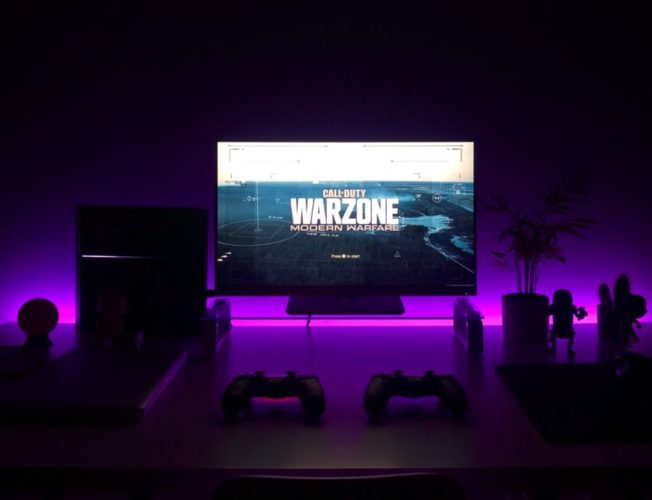
Call of Duty is a game that is all too familiar. If you are a gamer, you would have most definitely come across the game and even gotten obsessed with it. There are instances when people have chosen the game over their family, partner, friends; it sure knows how to create havoc.
Call of Duty Warzone is considered as one of the most successful launches from Infinity War and Activision. The game is so popular that at any given time, it has an influx of players. Additionally, popular among Call of Duty players are safe cheats they will enable them to advance in the game without the dilemma of getting banned. With the gaining popularity, the game has a lot of glitches, errors, and never-ending issues. As a player, these things can get quite frustrating, and you need a solution as soon as possible. One of the biggest and on the rise errors and problems that the players face is that of the Warzone Voice chat and mic not functioning.
There have been many people complaining about the same. If you haven’t come across this problem yet, you most certainly do not want to encounter it anytime either. As the disturbance to the in-game communication is quite infuriating. The main issue is you can hear people, but they have a hard time hearing you. Many users speculate that this is caused due to NAT, which is quite strict, but it can’t be true as you can still listen to people. This issue seems to be from the platform, and lucky for you can be resolved immediately.
How to fix chat on Call of Duty Warzone?
If your chat is not working, that means you cannot send messages in the chat room, then you need to follow specific steps. Before anything else, the first thing you do is check the input and output settings, also ensure that configuration of everything is correct and has been done. The input device will be what you use to speak, while the output would be what you would use to hear for the game’s sounds.
If you face issues with the game chat, if it is not working correctly, you likely have multiple output devices or enabled the wrong input device for the game.
You can fix the issues in the following ways.
Fixing the issue of microphone not working in Call of Duty Warzone:
- The initial step you start with the easy steps that fix the problems most of the time. If this doesn’t fix the problem, then we move on to a more in-depth method, which will require time and effort.
- Go to the taskbar and right-click on the speaker icon, go ahead and select the option “Open sound settings.”
- This should drop a window that says Sound on top.
- The far-right of this window, there is a menu called “Related settings.” Select the optician that is titled “Sound Control Panel.” This will bring about the old school control panel that would display all of your devices.
- Now in this panel, you select “playback” and find the headset in the list given.
- Once you locate the headset in the list, right-click on it and choose the option from the dropbox “Set as default device.” After doing so, it should have put a green checkmark on the corner. Right-click it again, and this time select the option “Set as Default Communication Device.”
- Now select “Recording” on the list; it is situated at the top. Find your primary microphone.
- Follow the same steps as step (Playback). Find the mic, and it is the default communication device and the default device.
After following these steps go ahead and try out your microphone, and if people can hear you in the chat room, that means the problem has been solved. If this method hasn’ fixed the issue, then there are a few more steps you need to follow that will most likely fix the voice chat issue.
- The first thing you focus on now is to delete your player files and change options in your .ini file for the Call of Duty game. This will take no more than three minutes and is not complicated, rather very simple. But we warned by doing this method, you might be resetting your campaign process.
- On your computer, go to “document,” this should be located in your C: Drive. The folder that we are trying to find is located in the documents by the game.
- Find the folder titled “Call of Duty Modern Warfare” again; this is not located in your game files. Instead, it is in your Documents folder.
- The next thing you do is open the folder called “Players.”
- Now proceed to delete everything inside the folder except for “adv_options.”
- Right-click on the “adv_options” file and go ahead and select “open with.” You open this in a notepad, hence select the notepad option when the “open with” drops a dropbox.
- Now that you have opened it on the notepad change the following line.
“ConfifCloudStorageEnabled = 1” all you have to do is change the number 1 to 0.
- Proceed to save the notepad and close it. (Tip: open it again the same way to see if the changes have been made or not)
- Now get ready and start your game, and set the games setting back up. Now go and change the settings to how you had them prior to the changes. You should now be able to test the microphone. This is available in the audio menu and sees if it works. Everything is sailing smoothly or no, go ahead and close the game completely.
- It doesn’t end there; go back to your notepad that you opened through “adv_options” and change the 0 back to 1.
- Save the notepad once again. Close and reopen to check if it has been appropriately saved or not.
- Open the game again, and everything must be working exactly like prior.
Final Thoughts
Hopefully, this would help you solve your issue, and you can get back to playing your favorite game, Call of Duty. The game is mind blowing, and you definitely are hooked the minute you start, but it’s sad how some players can’t hear the others. As the chat room is an excellent aspect of the game and not being able to listen to your teammates due to updates removes the fun out of COD-Warzone

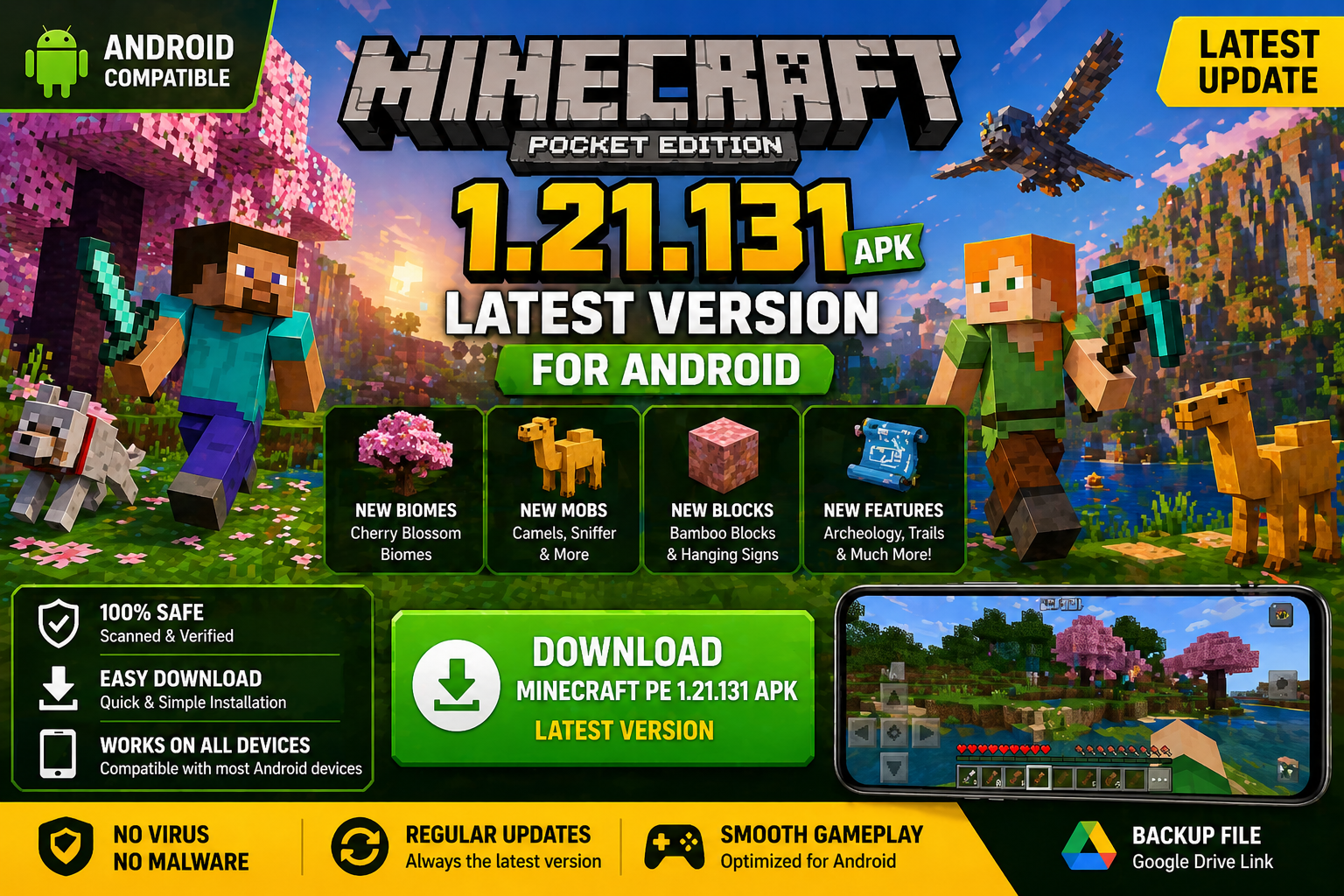
Download Minecraft PE 1.21.131 APK for Android
Minecraft Bedrock 1.21.131 is a focused hotfix update — improved Spear combat, two important bug fixes, and better overall stability on Android. No new content, but a noticeably smoother experience.
Spear Knockback Improvement
The window during which a charged Spear attack can apply knockback has been extended. This makes combat feel more reliable — the attack now connects as expected without requiring pinpoint timing, especially useful when fighting multiple mobs at once.
Spear Animation Alignment
Charge attack animations now accurately sync with the Spear’s three gameplay phases: Engaged, Tired, and Disengaged. What you see on screen now matches what the game engine is actually doing — making combat more readable and reducing guesswork in fights.
Performance & Stability
Frame drops on mid-range Android hardware have been reduced. Memory handling improvements prevent sudden freezes during long play sessions. World loading and chunk generation are more reliable, reducing terrain “pop-in” when exploring or moving quickly.
Multiplayer Improvements
Backend updates improve session stability when players join or leave. Fewer disconnects and smoother synchronisation across Bedrock servers. Marketplace content and add-ons also load more consistently during multiplayer sessions.
Adventuring Time Achievement Fixed — The achievement no longer unlocks early. It now correctly requires visiting at least 17 biomes on PC, matching the intended design.
Marketplace Escape Key Fixed — Pressing Escape after using the Marketplace search now reliably returns players to the previous menu instead of getting stuck in a loop.
Add-on World Loading Fixed — A bug that triggered a “Block” error when loading or creating worlds with multiple add-ons installed has been resolved.
Download the APK
Tap one of the Download buttons above. Choose the Standard (no music) version if storage is limited, or the Full version for the complete experience. The ARM64 build is recommended for modern phones.
Enable “Install Unknown Apps”
Go to Settings → Security (or Privacy) → Install unknown apps. Enable the permission for your browser or file manager. Android requires this for any APK installed outside Google Play.
Open the APK File
Open your Downloads folder, find the Minecraft 1.21.131 APK, and tap it to launch the system installer. Follow the on-screen prompts.
Install Over Existing Version
In most cases you can install 1.21.131 directly over your existing Minecraft without losing any worlds or progress. If you see a signature conflict error, uninstall first — but back up your worlds beforehand.
Launch and Sign In
Open Minecraft, sign in with your Microsoft/Xbox Live account, and your existing worlds will load normally. Online multiplayer, Realms, and Marketplace content all work as before.
Download Minecraft PE 1.20 APK for Android
Get the full Minecraft Bedrock 1.20 (Trails and Tales) APK for Android. Supports Xbox Live sign-in. Multiple versions available — stable releases and preview builds.
Download the APK File
Tap the Download button above for the version you want. The APK file will save to your device’s Downloads folder.
Enable “Install Unknown Apps”
Go to Settings → Security or Privacy → Install unknown apps. Enable it for your browser or file manager. Android requires this for any APK installed outside of Google Play.
Open the Downloaded File
Open your Downloads folder (or tap the notification), find the Minecraft APK, and tap it to start the installer.
Confirm Installation
Tap Install and wait for the process to complete. If you see a “signature conflict” error, uninstall your existing Minecraft version first, then retry.
Launch and Sign In with Xbox Live
Open Minecraft, sign in with your Microsoft/Xbox Live account to access multiplayer, Realms, and cross-platform features.
-
 Guides7 years ago
6 Proven Ways to Get more Instagram Likes on your Business Account
-
Mainstream12 years ago
BioWare: Mass Effect 4 to Benefit From Dropping Last-Gen, Will Not Share Template With Dragon Age: Inquisition
-
 Mainstream8 years ago
How to Buy Property & Safe Houses in GTA 5 (Grand Theft Auto 5)
-

 Guides2 years ago
Free Fire vs PUBG: Comparing Graphics, Gameplay, and More
-

 Guides2 years ago
50+ Free Fire ID and Passwords Login List (Giveaway) 2025
-
 Casual3 years ago
8 Ways to Fix Over-Extrusion and Under-Extrusion in 3D Printing
-

 Other3 years ago
Ajjubhai UID: Free Fire Details & Earnings
-

 Features2 years ago
Exploring Valorant eSports Stats: Unveiling the Metrics Behind Competitive Excellence