
Guides
Valorant Settings of Shroud: Setup Secrets

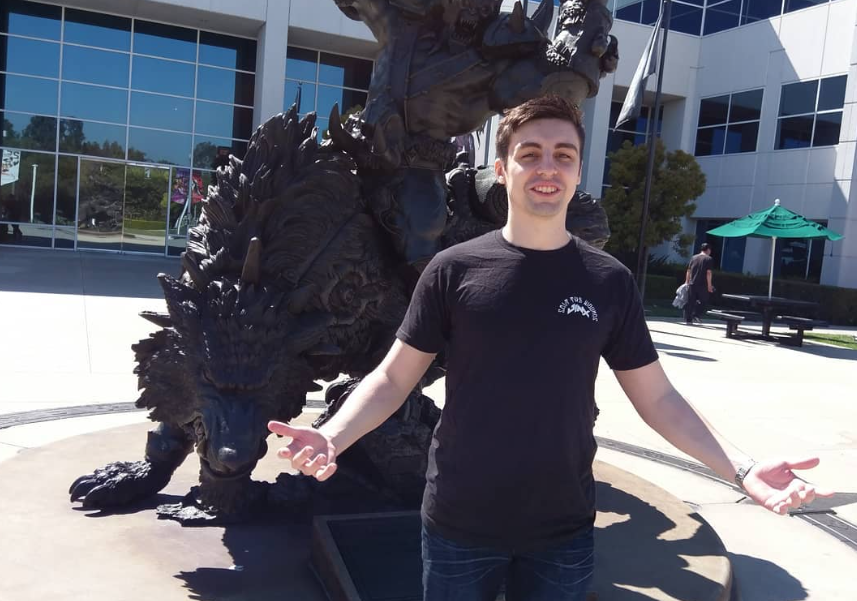
In the world of competitive gaming, there are a few names that command the same level of respect and admiration as Shroud (Michael Grzesiek). From his illustrious Counter-Strike days to his current reign as a streaming phenomenon, Shroud’s skills and captivating gameplay have earned him a legion of devoted fans. At the heart of his success lies a diligent approach to optimizing every aspect of his setup, from mouse settings to keybinds, crosshair configurations, and video settings. Let’s waste no more time and unlock the secrets behind Shroud’s Valorant settings, exploring the intricate details that have propelled him to gaming excellence.
Shroud’s Setup Secrets
The Mouse: Precision and Control
Shroud’s choice of mouse, the Logitech G303 Shroud Edition, is renowned for its accuracy and responsiveness. His mouse settings are finely tuned, with a DPI of 400 and an in-game sensitivity of 0.78, allowing for precise movements and minute adjustments. The scoped sensitivity is slightly higher at 1.15, providing a boost in precision for scoped weapons. With a polling rate of 1000 Hz and an effective DPI (eDPI) of 312, Shroud strikes the perfect balance between control and maneuverability.
Also Read: How to Rank Up Fast in Valorant Competitive Mode
Keybinds: Mastering Muscle Memory
While Shroud predominantly utilizes the default keybinds, he has made slight modifications to suit his preferences. He maps abilities to C, Q, E, and X, allowing for quick execution during intense firefights. The left Shift is bound to walk, left Control to crouch, and Spacebar or Mouse Wheel Down for jumping. Weapon selection is assigned to the 1, 2, and 3 keys, with 4 dedicated to interacting with the Spike.
The Crosshair: Precision and Visibility
Shroud’s crosshair settings are meticulously crafted for maximum visibility and precision. He opts for a CYAN color with outlines set to an opacity of 0.35 and a thickness of 2. The inner lines have an opacity of 1, a length of 6, a thickness of 2, and an offset of 4, providing a clear point of reference for precise aiming. The outer lines have an opacity of 0.35, a thickness of 2, and a length of 10, creating a distinct and easily identifiable pattern.
Radar Settings: Staying Informed
Shroud’s radar settings are tailored to provide the most relevant information. He enables the “Rotate” option, allowing the radar to rotate based on his character’s facing direction, and utilizes the “Fixed Orientation” setting, displaying the radar based on his team’s side. The minimap size is set slightly larger than default at 1.028, and he enables the “Vision Cones” option to display approximate lines of sight. Additionally, the “Show Map Region Names” option is set to “Always” for easy communication.
Video Settings: Striking a Balance
Shroud’s video settings strike the perfect equilibrium between visual quality and performance. He plays Valorant in fullscreen mode at a resolution of 1920×1080 with a 16:9 aspect ratio. Multithreaded rendering is enabled, and material, detail, and UI quality are set to “Low” to prioritize performance. While texture quality remains on “High,” visual effects like vignette, bloom, and distortion are disabled. Shroud enables MSAA 2x anti-aliasing, anisotropic filtering at 8x, and the “Improve Clarity” option for enhanced visuals. Cast shadows are kept enabled for depth perception and immersion.
Also Read: Valorant Esports: A Deep Dive into Tournaments and Player Profiles
Customization And Experimentation
While Shroud’s settings serve as an excellent starting point, the perfect setup is unique to each individual. Factors such as personal preferences, playstyle, and hardware capabilities all play a role in determining the optimal configuration. Players should experiment with Shroud’s mouse settings, keybinds, crosshair options, and video settings to find what works best for them.
Remember, settings are just one piece of the puzzle. Mastering the fundamentals of Valorant, such as map knowledge, strategic decision-making, and communication with teammates, is equally important. Shroud’s success is a testament not only to his finely tuned setup but also to his years of dedication, practice, and unwavering commitment to improving his skills.
Also Read: How to Rank Up fast in Valorant Competitive Mode?
Conclusion
Shroud’s Valorant settings are a testament to his relentless pursuit of excellence and his unwavering commitment to honing his craft. From the precision of his mouse settings to the finely tuned keybinds, crosshair configurations, and video settings, every aspect of his setup is meticulously tailored to maximize his performance and enhance his gameplay experience.
However, it’s important to remember that while Shroud’s settings can serve as an excellent starting point, the perfect setup is unique to each individual. Factors such as personal preferences, playstyle, and hardware capabilities all play a role in determining the optimal configuration.

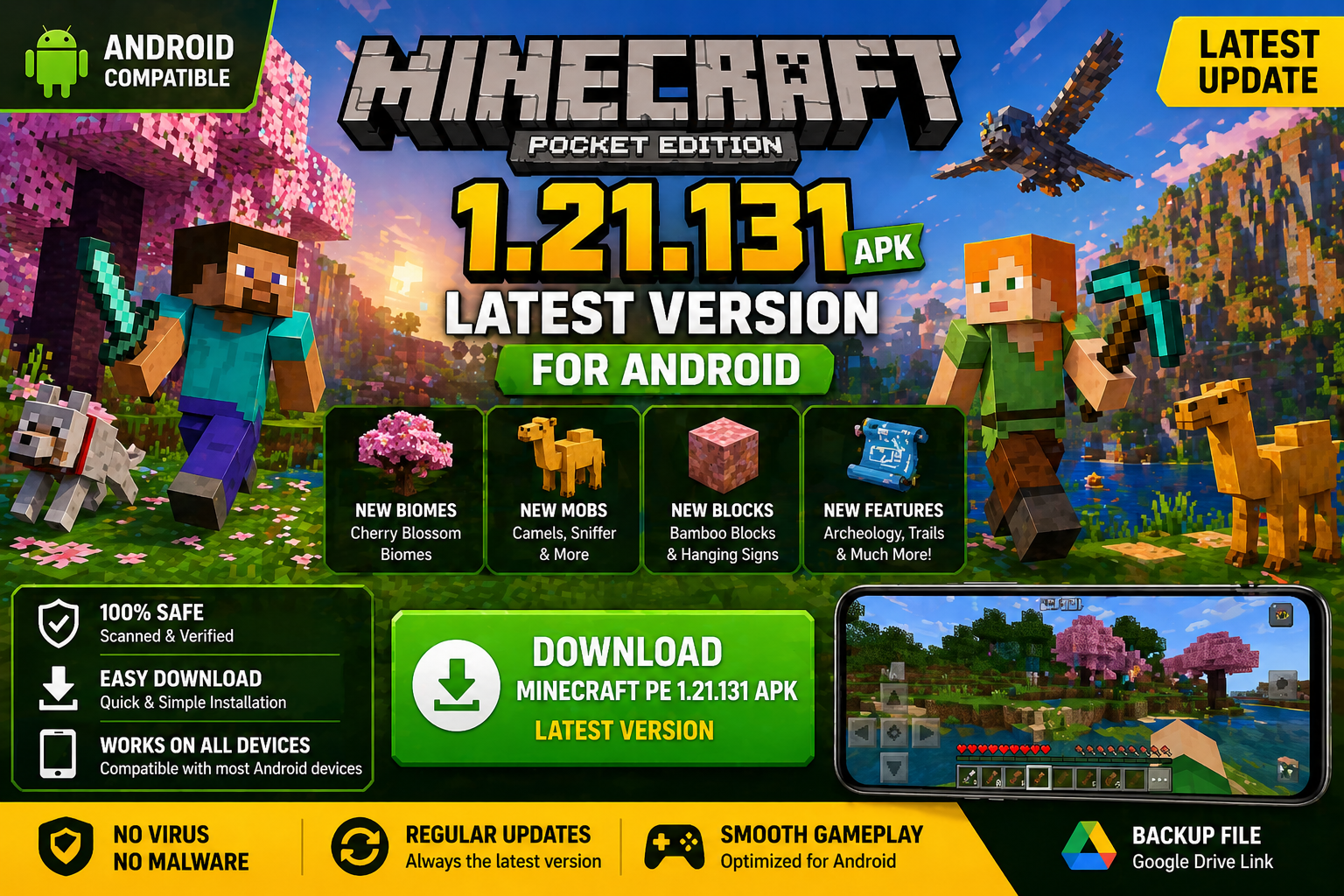
Download Minecraft PE 1.21.131 APK for Android
Minecraft Bedrock 1.21.131 is a focused hotfix update — improved Spear combat, two important bug fixes, and better overall stability on Android. No new content, but a noticeably smoother experience.
Spear Knockback Improvement
The window during which a charged Spear attack can apply knockback has been extended. This makes combat feel more reliable — the attack now connects as expected without requiring pinpoint timing, especially useful when fighting multiple mobs at once.
Spear Animation Alignment
Charge attack animations now accurately sync with the Spear’s three gameplay phases: Engaged, Tired, and Disengaged. What you see on screen now matches what the game engine is actually doing — making combat more readable and reducing guesswork in fights.
Performance & Stability
Frame drops on mid-range Android hardware have been reduced. Memory handling improvements prevent sudden freezes during long play sessions. World loading and chunk generation are more reliable, reducing terrain “pop-in” when exploring or moving quickly.
Multiplayer Improvements
Backend updates improve session stability when players join or leave. Fewer disconnects and smoother synchronisation across Bedrock servers. Marketplace content and add-ons also load more consistently during multiplayer sessions.
Adventuring Time Achievement Fixed — The achievement no longer unlocks early. It now correctly requires visiting at least 17 biomes on PC, matching the intended design.
Marketplace Escape Key Fixed — Pressing Escape after using the Marketplace search now reliably returns players to the previous menu instead of getting stuck in a loop.
Add-on World Loading Fixed — A bug that triggered a “Block” error when loading or creating worlds with multiple add-ons installed has been resolved.
Download the APK
Tap one of the Download buttons above. Choose the Standard (no music) version if storage is limited, or the Full version for the complete experience. The ARM64 build is recommended for modern phones.
Enable “Install Unknown Apps”
Go to Settings → Security (or Privacy) → Install unknown apps. Enable the permission for your browser or file manager. Android requires this for any APK installed outside Google Play.
Open the APK File
Open your Downloads folder, find the Minecraft 1.21.131 APK, and tap it to launch the system installer. Follow the on-screen prompts.
Install Over Existing Version
In most cases you can install 1.21.131 directly over your existing Minecraft without losing any worlds or progress. If you see a signature conflict error, uninstall first — but back up your worlds beforehand.
Launch and Sign In
Open Minecraft, sign in with your Microsoft/Xbox Live account, and your existing worlds will load normally. Online multiplayer, Realms, and Marketplace content all work as before.
Download Minecraft PE 1.20 APK for Android
Get the full Minecraft Bedrock 1.20 (Trails and Tales) APK for Android. Supports Xbox Live sign-in. Multiple versions available — stable releases and preview builds.
Download the APK File
Tap the Download button above for the version you want. The APK file will save to your device’s Downloads folder.
Enable “Install Unknown Apps”
Go to Settings → Security or Privacy → Install unknown apps. Enable it for your browser or file manager. Android requires this for any APK installed outside of Google Play.
Open the Downloaded File
Open your Downloads folder (or tap the notification), find the Minecraft APK, and tap it to start the installer.
Confirm Installation
Tap Install and wait for the process to complete. If you see a “signature conflict” error, uninstall your existing Minecraft version first, then retry.
Launch and Sign In with Xbox Live
Open Minecraft, sign in with your Microsoft/Xbox Live account to access multiplayer, Realms, and cross-platform features.
-
 Guides6 years ago
6 Proven Ways to Get more Instagram Likes on your Business Account
-
Mainstream12 years ago
BioWare: Mass Effect 4 to Benefit From Dropping Last-Gen, Will Not Share Template With Dragon Age: Inquisition
-
 Mainstream8 years ago
How to Buy Property & Safe Houses in GTA 5 (Grand Theft Auto 5)
-

 Guides2 years ago
Free Fire vs PUBG: Comparing Graphics, Gameplay, and More
-

 Guides2 years ago
50+ Free Fire ID and Passwords Login List (Giveaway) 2025
-
 Casual3 years ago
8 Ways to Fix Over-Extrusion and Under-Extrusion in 3D Printing
-
 Other2 years ago
Ajjubhai UID: Free Fire Details & Earnings
-

 Features2 years ago
Exploring Valorant eSports Stats: Unveiling the Metrics Behind Competitive Excellence