
Guides
Shroud’s Counter – Strike Settings, Crosshair, and Viewmodel


Former professional Counter-Strike: Global Offensive (CS: GO) player Michael “Shroud” Grzesiek is well known for his superb aim and in-game awareness. Even though he now streams full-time, prospective gamers hoping to follow in his footsteps are curious about his CS: GO settings.
This blog will explore Shroud’s favored configurations, which include his model settings, crosshair setup, and other important gaming tweaks that help him achieve elite gameplay.
Shroud’s CS: GO Settings

Crosshair Settings
Crosshair is one of the most essential and customized elements of a player’s CS: GO setup. Shroud can retain precise accuracy because his crosshair settings are tailored for clarity and precision. This is a thorough explanation of his crosshair setup:
- Crosshair Style: 4 (Classic)
- Center Dot: No
- Length: 3
- Thickness: 1
- Gap: -1
- Outline: No
- Color: Cyan (Color code: 5)
- Alpha: 255
- T Style: No
- Dynamic: No (Static)
These settings produce a small, static crosshair that doesn’t block vision when aiming. Because cyan is visible across various backgrounds, Shroud can monitor adversaries without losing sight of his crosshair.
Also Read: How To Check Your League Of Legends MMR System?
Viewmodel Settings
Your field of vision and level of immersion in the game is impacted by how your weapon appears on the screen, depending on the model settings. The viewmodel settings in Shroud are designed to reduce distraction and increase attention. He configures his viewmodel as follows:
- Viewmodel FOV: 68
- Viewmodel Offset X: 2
- Viewmodel Offset Y: 2
- Viewmodel Offset Z: -2
- Viewmodel Presetpos: 3
- Viewmodel Recoil: 0
- Viewmodel Bob: 0
Shroud makes sure his weapon is positioned so it doesn’t obstruct his vision of the action by adjusting the viewmodel offset and FOV. This configuration improves enemy tracking and adds comfort to the game experience.
Also Read: Cheat Code Pokemon Ruby: Full list of codes
Other Key Settings
In addition to viewmodel and crosshair, a few more game parameters are vital to Shroud’s functionality. Here are a few of his most important setups:
- Mouse Sensitivity: 2.2
- eDPI: 990 (DPI: 450)
- Mouse Acceleration: Off
- Raw Input: On
- Polling Rate: 1000 Hz
Shroud’s mouse settings are calibrated to balance accuracy and speed, allowing for steady tracking and rapid reflex shots. In a fast-paced game like CS: GO, the high polling rate guarantees that his mouse movements are registered with the least amount of latency.
- Resolution: 1920×1080
- Aspect Ratio: 16:9
- Scaling Mode: Stretched
- Refresh Rate: 240 Hz
Shroud chooses a high-resolution configuration for crisp images and a 240 Hz refresh rate display for fluid gameplay. Without significantly altering the gameplay, the stretched scale mode makes player models larger, giving them easier targets.
Also Read: Sims 4 Acting Skill Cheat [Acting Skill Guide]
Conclusion
Taking Shroud’s settings and emulating them can help you better play Counter-Strike: Global Offensive. His view model reduces distractions, and his crosshair maximizes visibility and precision.
Pairing these with the best mouse and display settings ensures a smooth and responsive gaming experience. However, it’s crucial to remember that personal choice heavily influences gaming performance.

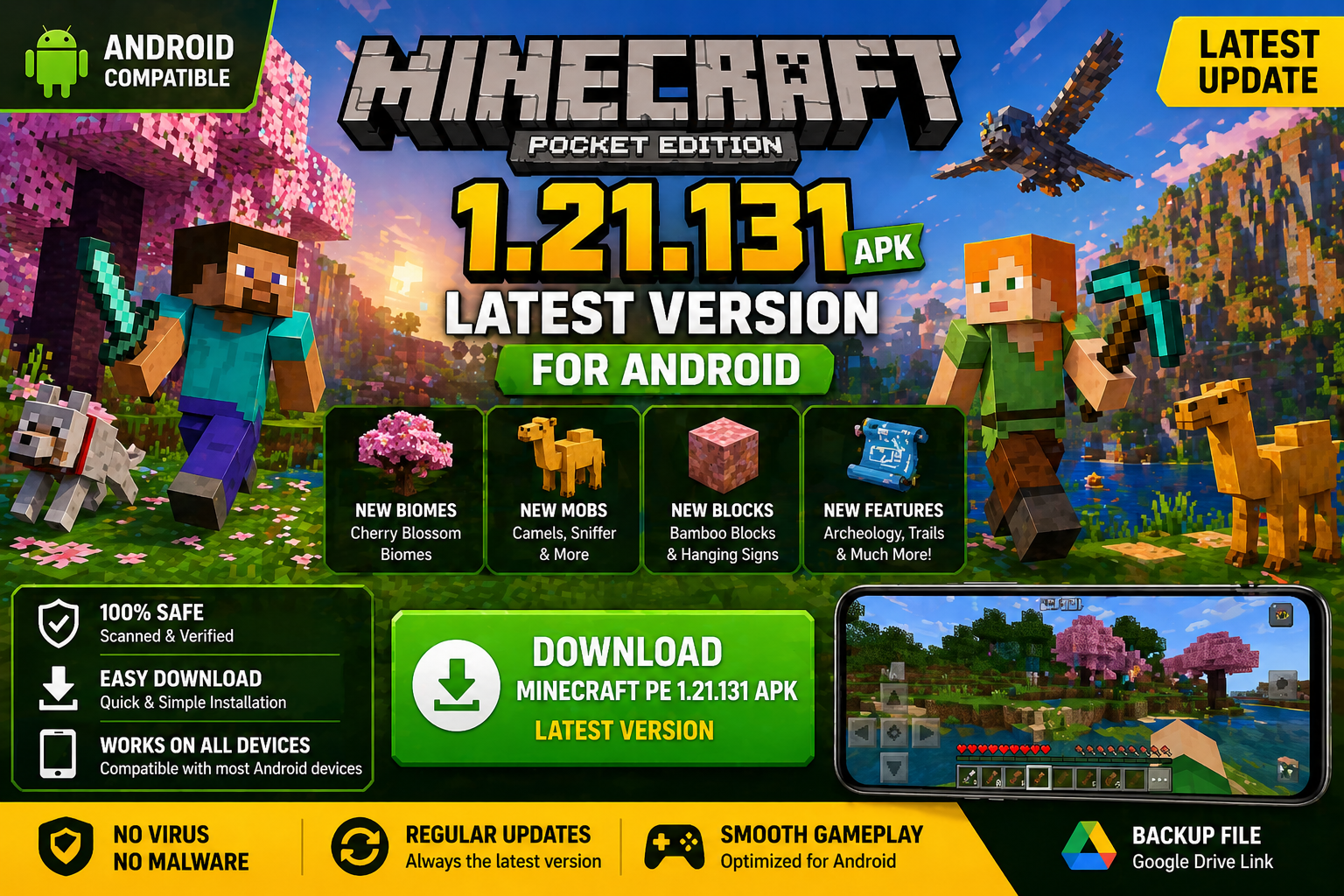
Download Minecraft PE 1.21.131 APK for Android
Minecraft Bedrock 1.21.131 is a focused hotfix update — improved Spear combat, two important bug fixes, and better overall stability on Android. No new content, but a noticeably smoother experience.
Spear Knockback Improvement
The window during which a charged Spear attack can apply knockback has been extended. This makes combat feel more reliable — the attack now connects as expected without requiring pinpoint timing, especially useful when fighting multiple mobs at once.
Spear Animation Alignment
Charge attack animations now accurately sync with the Spear’s three gameplay phases: Engaged, Tired, and Disengaged. What you see on screen now matches what the game engine is actually doing — making combat more readable and reducing guesswork in fights.
Performance & Stability
Frame drops on mid-range Android hardware have been reduced. Memory handling improvements prevent sudden freezes during long play sessions. World loading and chunk generation are more reliable, reducing terrain “pop-in” when exploring or moving quickly.
Multiplayer Improvements
Backend updates improve session stability when players join or leave. Fewer disconnects and smoother synchronisation across Bedrock servers. Marketplace content and add-ons also load more consistently during multiplayer sessions.
Adventuring Time Achievement Fixed — The achievement no longer unlocks early. It now correctly requires visiting at least 17 biomes on PC, matching the intended design.
Marketplace Escape Key Fixed — Pressing Escape after using the Marketplace search now reliably returns players to the previous menu instead of getting stuck in a loop.
Add-on World Loading Fixed — A bug that triggered a “Block” error when loading or creating worlds with multiple add-ons installed has been resolved.
Download the APK
Tap one of the Download buttons above. Choose the Standard (no music) version if storage is limited, or the Full version for the complete experience. The ARM64 build is recommended for modern phones.
Enable “Install Unknown Apps”
Go to Settings → Security (or Privacy) → Install unknown apps. Enable the permission for your browser or file manager. Android requires this for any APK installed outside Google Play.
Open the APK File
Open your Downloads folder, find the Minecraft 1.21.131 APK, and tap it to launch the system installer. Follow the on-screen prompts.
Install Over Existing Version
In most cases you can install 1.21.131 directly over your existing Minecraft without losing any worlds or progress. If you see a signature conflict error, uninstall first — but back up your worlds beforehand.
Launch and Sign In
Open Minecraft, sign in with your Microsoft/Xbox Live account, and your existing worlds will load normally. Online multiplayer, Realms, and Marketplace content all work as before.
Download Minecraft PE 1.20 APK for Android
Get the full Minecraft Bedrock 1.20 (Trails and Tales) APK for Android. Supports Xbox Live sign-in. Multiple versions available — stable releases and preview builds.
Download the APK File
Tap the Download button above for the version you want. The APK file will save to your device’s Downloads folder.
Enable “Install Unknown Apps”
Go to Settings → Security or Privacy → Install unknown apps. Enable it for your browser or file manager. Android requires this for any APK installed outside of Google Play.
Open the Downloaded File
Open your Downloads folder (or tap the notification), find the Minecraft APK, and tap it to start the installer.
Confirm Installation
Tap Install and wait for the process to complete. If you see a “signature conflict” error, uninstall your existing Minecraft version first, then retry.
Launch and Sign In with Xbox Live
Open Minecraft, sign in with your Microsoft/Xbox Live account to access multiplayer, Realms, and cross-platform features.
-
 Guides7 years ago
6 Proven Ways to Get more Instagram Likes on your Business Account
-
Mainstream12 years ago
BioWare: Mass Effect 4 to Benefit From Dropping Last-Gen, Will Not Share Template With Dragon Age: Inquisition
-
 Mainstream8 years ago
How to Buy Property & Safe Houses in GTA 5 (Grand Theft Auto 5)
-

 Guides2 years ago
Free Fire vs PUBG: Comparing Graphics, Gameplay, and More
-

 Guides2 years ago
50+ Free Fire ID and Passwords Login List (Giveaway) 2025
-
 Casual3 years ago
8 Ways to Fix Over-Extrusion and Under-Extrusion in 3D Printing
-

 Other3 years ago
Ajjubhai UID: Free Fire Details & Earnings
-

 Features2 years ago
Exploring Valorant eSports Stats: Unveiling the Metrics Behind Competitive Excellence