
Guides
Is Deep Rock Galactic Crossplay: The Guide

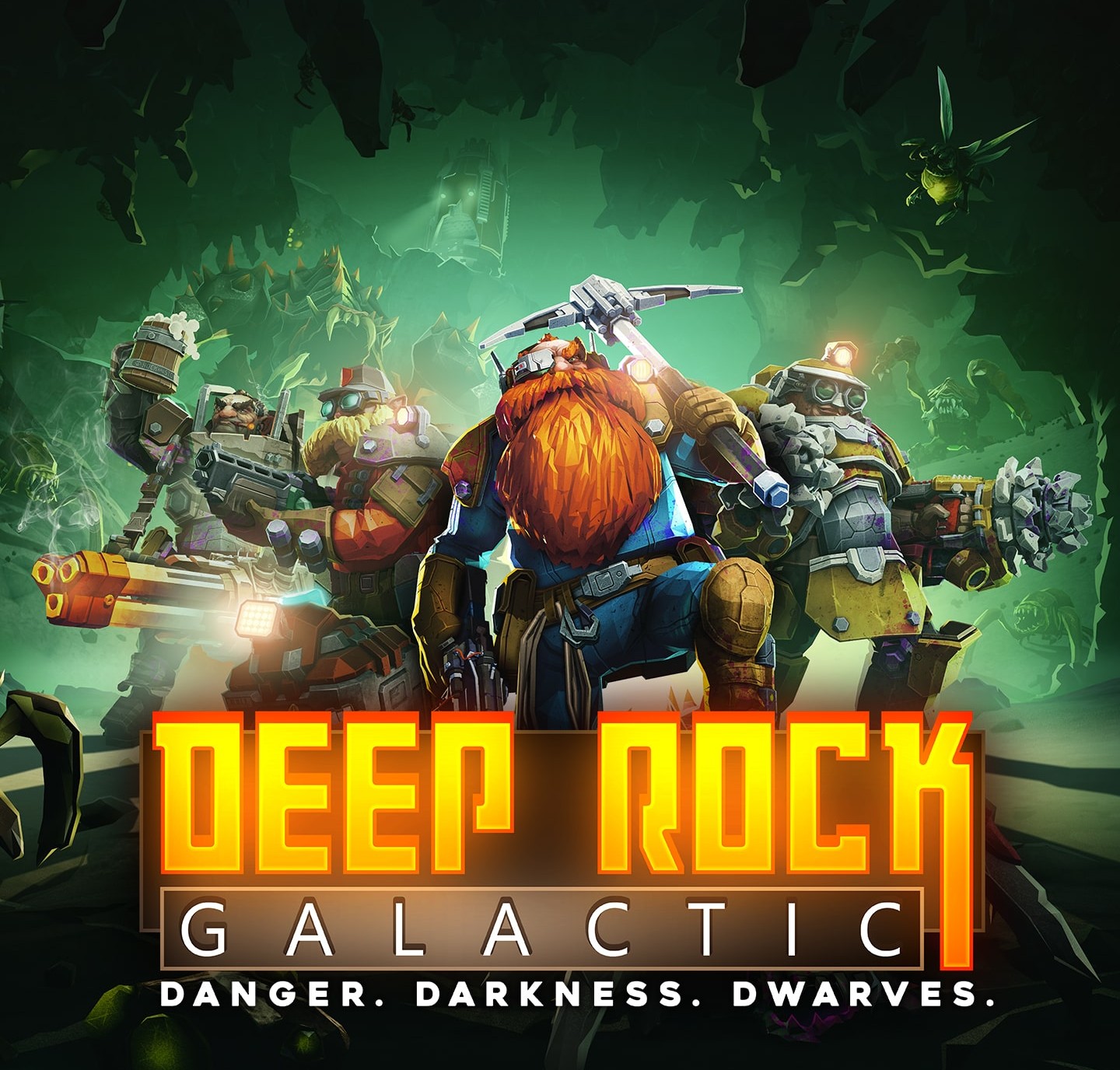
Key Takeaways
- Crossplay is available between Xbox consoles and the Microsoft Store PC version.
- PlayStation 4 and 5 support crossplay only with each other.
- Steam users can only play with other Steam players—no cross-platform play.
- Cross-progression works fully between Xbox and Microsoft Store platforms.
- Full crossplay across all platforms is not planned due to technical limitations.
Introduction
Who doesn’t love alien combat, space mining and first-person shooting? Maybe some, but you definitely do otherwise you wouldn’t be here!!
This guide will tell you all about deep rock galactic crossplay and how to make the most out of it.
Is Deep Rock Galactic Crossplay?

Deep Rock Galactic offers a bit of crossplay, but it’s pretty limited. If you’re playing on Xbox consoles or using the Microsoft Store version on Windows 10/11, you can easily team up since both platforms rely on Xbox Live services. However, if you’re on the Steam version for PC, you won’t be able to play with Xbox or Microsoft Store users.
On the other hand, players on PlayStation 4 and PlayStation 5 can enjoy cross-generational play, but they can’t connect with anyone on Xbox or PC. The game also offers peer-to-peer setup and the different infrastructures for each platform which makes it tough to roll out universal crossplay.
As of now, there aren’t any official plans to broaden cross-platform support to include all systems.
Also read about: Guild Wars 2 Weaponsmith Leveling Guide 0-400
How To Enable Crossplay On Deep Rock Galactic?
Xbox + Microsoft Store (PC)
- Crossplay is automatically enabled on Xbox consoles and the Windows 10/11 version from the Microsoft Store.
- You can easily invite your friends through your Xbox Live friend list or by using the in-game invite feature.
Steam (PC)
- Steam users cannot crossplay with Xbox or Microsoft Store players.
- Only Steam-to-Steam multiplayer is supported.
PlayStation (PS4 & PS5)
- Crossplay is supported only between PS4 and PS5.
- You can invite friends using your PlayStation Network friend list.
Cross-Progression: What Carries Over Across Platforms?

In Deep Rock Galactic, cross-progression is a bit of a mixed bag, and it really hinges on which platform you’re playing on. If you’re diving into the game on Xbox or the Microsoft Store (PC) through Xbox Play Anywhere, you’re in luck—you get full cross-progression!
This means all your character levels, upgrades, cosmetics, mission progress, and inventory will transfer smoothly between these two platforms since they’re part of the same Xbox Live ecosystem.
Also Read: Can You Play Elden Ring Offline? | Everything a Tarnished Needs to Know
Will Full Crossplay Be Available in the Future?
As of 2025, Ghost Ship Games isn’t planning to roll out full crossplay for Deep Rock Galactic. The game’s peer-to-peer setup and its dependence on platform-specific backends create some pretty big hurdles for cross-platform play. To make full crossplay happen, they’d need to completely revamp the game’s infrastructure, which includes building and maintaining a unified account system—a job the developers have said is just too much for them right now.
Considering these technical and logistical challenges, it seems pretty unlikely that full crossplay will be on the table anytime soon. If you’re looking to enjoy cross-platform multiplayer, your best bet is to go with the Xbox or Microsoft Store versions to make the most of the current crossplay options.
Tips For A Better Crossplay Experience
- Keep Your Game Updated: Always ensure your game is up to date with the latest version. If your versions don’t match, you might find yourself locked out of multiplayer.
- Log Into Xbox Live: Whether you’re gaming on a console or a PC, it’s important to sign in with the same Xbox account to unlock crossplay features and keep your progress in sync.
- Invite Friends via Xbox Friends List: You can easily connect with your cross-platform buddies using the Xbox app or the in-game invite system.
- Use Voice Chat Alternatives: If the in-game chat isn’t cutting it across platforms, think about using third-party apps like Discord for clearer communication.
- Check Your NAT Type: Having a moderate or open NAT type can really improve your connectivity. You can tweak this in your router settings.
- Opt for Wired Internet: For the best gaming experience, stick to a wired connection to minimize lag and avoid disconnections.
Also Read: Is Dying Light 2 Cross-platform?
Crossplay Bugs And Known Issues

Having trouble inviting friends? You’re not alone!
- Make sure everyone has the latest game updates installed and that their NAT type is set to “Open.” If that doesn’t work, try restarting the game or checking your internet connection.
Platform-Specific Progression Glitches
- To keep things smooth, it’s best to stick to the same platform as your friends when playing. If you do run into any issues with your progress not syncing, try restarting the game or logging back into your account.
Voice Chat Not Working Across Platforms
- If you’re having trouble with audio, try using third-party apps like Discord or take a look at the in-game settings to check for any input or output issues. Also, make sure that voice chat is turned on in your system settings.
Multiplayer Connection Issues Between Platforms
- To ensure a smooth experience, make sure your internet connection is stable. Using a wired connection can really help with stability, and it’s a good idea to check for any background apps that might be hogging your bandwidth to minimize lag.
Also Read: Is The Forest Cross-Platform?
Conclusion
Deep Rock Galactic brings a bit of crossplay magic to the table, allowing players on certain platforms to team up and enjoy the game together. While there are a few technical hiccups and known issues, sticking to our tips and solutions will help smooth things out.

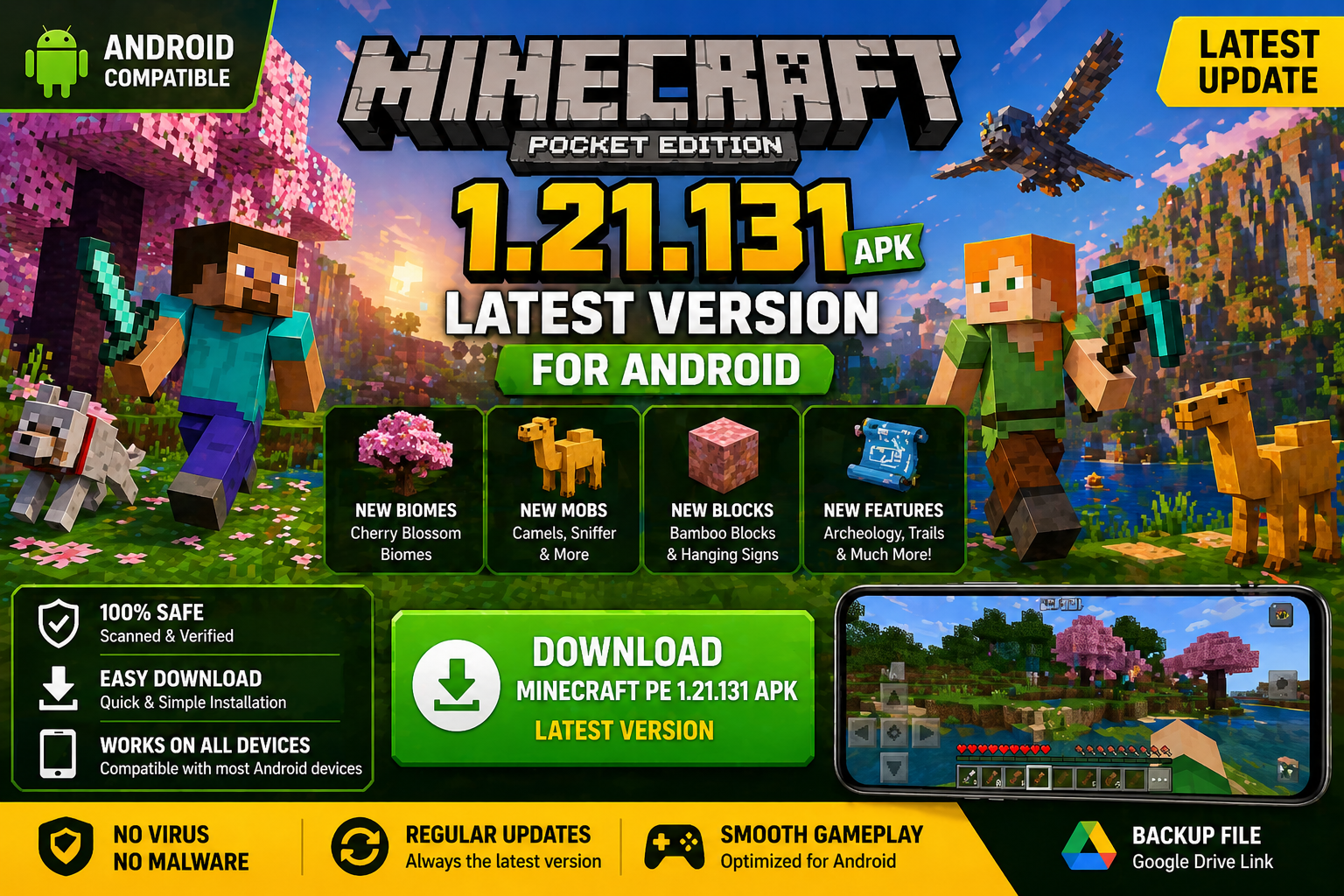
Download Minecraft PE 1.21.131 APK for Android
Minecraft Bedrock 1.21.131 is a focused hotfix update — improved Spear combat, two important bug fixes, and better overall stability on Android. No new content, but a noticeably smoother experience.
Spear Knockback Improvement
The window during which a charged Spear attack can apply knockback has been extended. This makes combat feel more reliable — the attack now connects as expected without requiring pinpoint timing, especially useful when fighting multiple mobs at once.
Spear Animation Alignment
Charge attack animations now accurately sync with the Spear’s three gameplay phases: Engaged, Tired, and Disengaged. What you see on screen now matches what the game engine is actually doing — making combat more readable and reducing guesswork in fights.
Performance & Stability
Frame drops on mid-range Android hardware have been reduced. Memory handling improvements prevent sudden freezes during long play sessions. World loading and chunk generation are more reliable, reducing terrain “pop-in” when exploring or moving quickly.
Multiplayer Improvements
Backend updates improve session stability when players join or leave. Fewer disconnects and smoother synchronisation across Bedrock servers. Marketplace content and add-ons also load more consistently during multiplayer sessions.
Adventuring Time Achievement Fixed — The achievement no longer unlocks early. It now correctly requires visiting at least 17 biomes on PC, matching the intended design.
Marketplace Escape Key Fixed — Pressing Escape after using the Marketplace search now reliably returns players to the previous menu instead of getting stuck in a loop.
Add-on World Loading Fixed — A bug that triggered a “Block” error when loading or creating worlds with multiple add-ons installed has been resolved.
Download the APK
Tap one of the Download buttons above. Choose the Standard (no music) version if storage is limited, or the Full version for the complete experience. The ARM64 build is recommended for modern phones.
Enable “Install Unknown Apps”
Go to Settings → Security (or Privacy) → Install unknown apps. Enable the permission for your browser or file manager. Android requires this for any APK installed outside Google Play.
Open the APK File
Open your Downloads folder, find the Minecraft 1.21.131 APK, and tap it to launch the system installer. Follow the on-screen prompts.
Install Over Existing Version
In most cases you can install 1.21.131 directly over your existing Minecraft without losing any worlds or progress. If you see a signature conflict error, uninstall first — but back up your worlds beforehand.
Launch and Sign In
Open Minecraft, sign in with your Microsoft/Xbox Live account, and your existing worlds will load normally. Online multiplayer, Realms, and Marketplace content all work as before.
Download Minecraft PE 1.20 APK for Android
Get the full Minecraft Bedrock 1.20 (Trails and Tales) APK for Android. Supports Xbox Live sign-in. Multiple versions available — stable releases and preview builds.
Download the APK File
Tap the Download button above for the version you want. The APK file will save to your device’s Downloads folder.
Enable “Install Unknown Apps”
Go to Settings → Security or Privacy → Install unknown apps. Enable it for your browser or file manager. Android requires this for any APK installed outside of Google Play.
Open the Downloaded File
Open your Downloads folder (or tap the notification), find the Minecraft APK, and tap it to start the installer.
Confirm Installation
Tap Install and wait for the process to complete. If you see a “signature conflict” error, uninstall your existing Minecraft version first, then retry.
Launch and Sign In with Xbox Live
Open Minecraft, sign in with your Microsoft/Xbox Live account to access multiplayer, Realms, and cross-platform features.
-
 Guides7 years ago
6 Proven Ways to Get more Instagram Likes on your Business Account
-
Mainstream12 years ago
BioWare: Mass Effect 4 to Benefit From Dropping Last-Gen, Will Not Share Template With Dragon Age: Inquisition
-
 Mainstream8 years ago
How to Buy Property & Safe Houses in GTA 5 (Grand Theft Auto 5)
-

 Guides2 years ago
Free Fire vs PUBG: Comparing Graphics, Gameplay, and More
-

 Guides2 years ago
50+ Free Fire ID and Passwords Login List (Giveaway) 2025
-
 Casual3 years ago
8 Ways to Fix Over-Extrusion and Under-Extrusion in 3D Printing
-

 Other2 years ago
Ajjubhai UID: Free Fire Details & Earnings
-

 Features2 years ago
Exploring Valorant eSports Stats: Unveiling the Metrics Behind Competitive Excellence