
Guides
Importance of Parental Control App: Children’s Addiction to Minecraft and More!

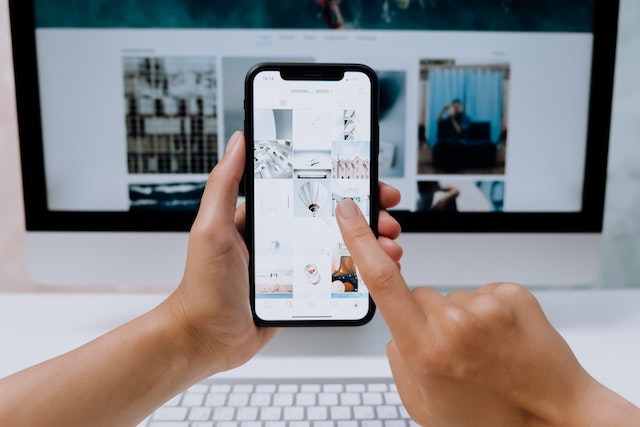
Children are increasingly spending more time online due to the prevalence of video games such as Minecraft and other digital activities. According to a study, it is expected that gambling addiction will affect around 6-15 % of people in 2022, which is a significant and alarming statistic.
Parental control apps like sms tracker can be utilized to help children spend their time on screens responsively and safely by setting parental controls and monitoring screen usage. Such apps offer features like blocking certain websites or applications, enabling access only at specific times of the day, setting usage limits and tracking location visibility among others. This limits the exposure of young kids to age-inappropriate content while also allowing them to develop healthy screen-time habits.
Additionally, educational apps can help children discover new topics and explore their interests outside of the traditional classroom setting. Such apps provide interactive activities which allow children to engage with learning content in an enjoyable way and make it easier for them to understand abstract concepts better.
Also parents could also use specialized mental health applications that help monitor any emotional or behavioral changes in their kids as well as offer ways to deal with stress, anxiety and depression effectively. These applications include features such as providing guidance on managing emotions, offering counseling services and tracking sleep patterns among others.
Signs of childhood gambling addiction:
Excessive gaming. One of the most obvious signs that a child may be addicted to gaming is if they are spending an excessive amount of time playing video games. If a child is skipping school, homework, or other activities in order to play video games, this is a cause for concern.
Withdrawal symptoms. Another sign that a child may be addicted to gaming is if they experience withdrawal symptoms when they try to stop playing. These symptoms can include irritability, anxiety, and depression.
Lying about gaming habits. A child who is addicted to gaming may lie about how much time they are spending playing video games or what types of games they are playing. They may also try to hide their gaming habits from their parents or other adults in their life.
Neglecting other interests. A child who is addicted to gaming may neglect other interests and hobbies that they once enjoyed. They may no longer take part in sports or other activities that they used to enjoy.
Changes in mood and behavior. A child who is addicted to gaming may exhibit changes in mood and behavior, such as becoming more withdrawn or aggressive. They may also have difficulty concentrating or paying attention at school or work.
Our tips to improve the situation!
Try parental control apps. If you think your child may be addicted to gaming, there are several parental control apps that can help you monitor their activity. These apps allow you to set limits on game time, block certain games, and monitor the types of games they are playing.
Encourage positive activities. It’s important to encourage your child to engage in other positive activities that don’t involve gaming. This can include joining a sports team or community group, going for walks or bike rides with family and friends, or just taking some time away from screens every day.
Seek professional help if needed. If you’re concerned that your child might have a problem with gaming addiction, it’s important to seek professional help. Talk to your child’s doctor or a mental health professional who specializes in gaming addiction. They can help you develop strategies to address the problem and get your child back on track.
By taking these steps, you can help ensure that your child can enjoy their gaming experience without it becoming a source of distress or dysfunction. With proper guidance and support, you can help them find ways to use gaming as an enjoyable pastime that doesn’t interfere with other aspects of their life.
Take care of yourself too. It’s important for parents to remember that they need to take care of themselves too during this process so that they are able to be available for their children and make decisions that are in the best interest of their child’s health and wellbeing. Consider talking to your own support network or a therapist who can help you manage your emotions as you take steps to help your child. Also, make sure that you’re taking time for yourself, so that you have the energy needed to handle these difficult situations.
It is also important to stay informed about the games that your children play, including what types of content those games contain, how long they play them for each day, and who else they might be playing with online. Knowing this information can help parents assess whether gaming is becoming a source of distress or dysfunction for their child and determine if it’s necessary to take further action.
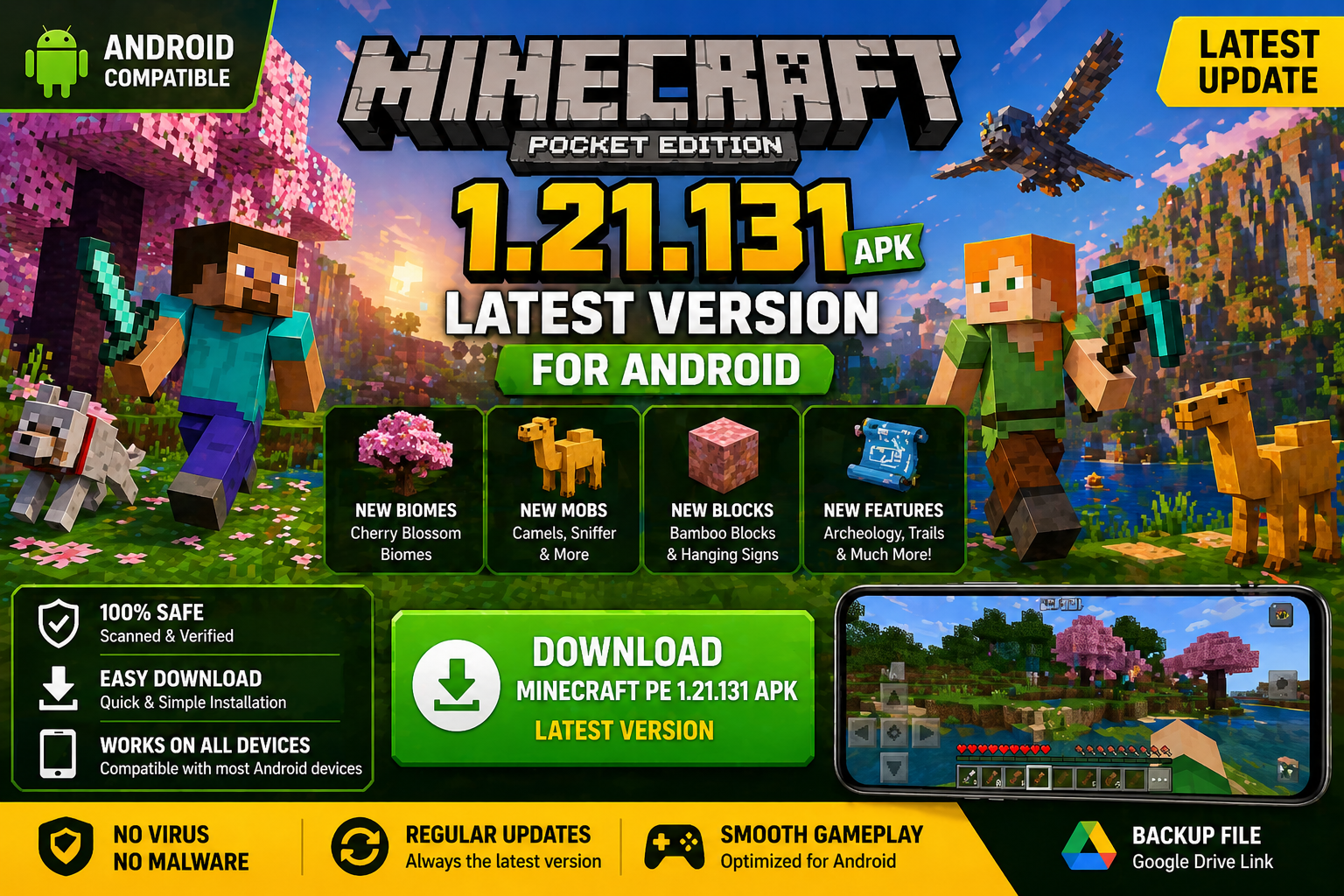
Download Minecraft PE 1.21.131 APK for Android
Minecraft Bedrock 1.21.131 is a focused hotfix update — improved Spear combat, two important bug fixes, and better overall stability on Android. No new content, but a noticeably smoother experience.
Spear Knockback Improvement
The window during which a charged Spear attack can apply knockback has been extended. This makes combat feel more reliable — the attack now connects as expected without requiring pinpoint timing, especially useful when fighting multiple mobs at once.
Spear Animation Alignment
Charge attack animations now accurately sync with the Spear’s three gameplay phases: Engaged, Tired, and Disengaged. What you see on screen now matches what the game engine is actually doing — making combat more readable and reducing guesswork in fights.
Performance & Stability
Frame drops on mid-range Android hardware have been reduced. Memory handling improvements prevent sudden freezes during long play sessions. World loading and chunk generation are more reliable, reducing terrain “pop-in” when exploring or moving quickly.
Multiplayer Improvements
Backend updates improve session stability when players join or leave. Fewer disconnects and smoother synchronisation across Bedrock servers. Marketplace content and add-ons also load more consistently during multiplayer sessions.
Adventuring Time Achievement Fixed — The achievement no longer unlocks early. It now correctly requires visiting at least 17 biomes on PC, matching the intended design.
Marketplace Escape Key Fixed — Pressing Escape after using the Marketplace search now reliably returns players to the previous menu instead of getting stuck in a loop.
Add-on World Loading Fixed — A bug that triggered a “Block” error when loading or creating worlds with multiple add-ons installed has been resolved.
Download the APK
Tap one of the Download buttons above. Choose the Standard (no music) version if storage is limited, or the Full version for the complete experience. The ARM64 build is recommended for modern phones.
Enable “Install Unknown Apps”
Go to Settings → Security (or Privacy) → Install unknown apps. Enable the permission for your browser or file manager. Android requires this for any APK installed outside Google Play.
Open the APK File
Open your Downloads folder, find the Minecraft 1.21.131 APK, and tap it to launch the system installer. Follow the on-screen prompts.
Install Over Existing Version
In most cases you can install 1.21.131 directly over your existing Minecraft without losing any worlds or progress. If you see a signature conflict error, uninstall first — but back up your worlds beforehand.
Launch and Sign In
Open Minecraft, sign in with your Microsoft/Xbox Live account, and your existing worlds will load normally. Online multiplayer, Realms, and Marketplace content all work as before.
Download Minecraft PE 1.20 APK for Android
Get the full Minecraft Bedrock 1.20 (Trails and Tales) APK for Android. Supports Xbox Live sign-in. Multiple versions available — stable releases and preview builds.
Download the APK File
Tap the Download button above for the version you want. The APK file will save to your device’s Downloads folder.
Enable “Install Unknown Apps”
Go to Settings → Security or Privacy → Install unknown apps. Enable it for your browser or file manager. Android requires this for any APK installed outside of Google Play.
Open the Downloaded File
Open your Downloads folder (or tap the notification), find the Minecraft APK, and tap it to start the installer.
Confirm Installation
Tap Install and wait for the process to complete. If you see a “signature conflict” error, uninstall your existing Minecraft version first, then retry.
Launch and Sign In with Xbox Live
Open Minecraft, sign in with your Microsoft/Xbox Live account to access multiplayer, Realms, and cross-platform features.
-
 Guides7 years ago
6 Proven Ways to Get more Instagram Likes on your Business Account
-
Mainstream12 years ago
BioWare: Mass Effect 4 to Benefit From Dropping Last-Gen, Will Not Share Template With Dragon Age: Inquisition
-
 Mainstream8 years ago
How to Buy Property & Safe Houses in GTA 5 (Grand Theft Auto 5)
-

 Guides2 years ago
Free Fire vs PUBG: Comparing Graphics, Gameplay, and More
-

 Guides2 years ago
50+ Free Fire ID and Passwords Login List (Giveaway) 2025
-
 Casual3 years ago
8 Ways to Fix Over-Extrusion and Under-Extrusion in 3D Printing
-

 Other3 years ago
Ajjubhai UID: Free Fire Details & Earnings
-

 Features2 years ago
Exploring Valorant eSports Stats: Unveiling the Metrics Behind Competitive Excellence