
Guides
How To Use No Lag VPN To Play Call of Duty Warzone?

What is the worst thing you could experience while playing a video game? There are only two issues – DDOS attacks and bandwidth throttling. These issues mainly arise from your ISP’s routing problems that you can fix with a few tweaks. And picking a good-quality and reliable no-lag VPN is the best option.
However, you must realize that VPNs don’t automatically improve your network speed. However, they reduce the throttling and allow you to have a smoother and glitch-free gaming experience from the start till the end.
We will explore more about the importance of No Lag VPN and how you can use it to play Call of Duty Warzone.
What Is No Lag VPN For Warzone?
To use a “No-Lag VPN”, you need to understand what it means. Unlike a standard VPN that protects and shields your IP address, a no-lag VPN does more.
Not only does it conceal and safeguard your IP address, but the VPN also improves packet loss and bandwidth throttling. The primary reason why you need a no-lag VPN is to trick your ISP into thinking that you are browsing normally.
If your ISP detects that you are indulging in an intensive game like Warzone that could affect other users’ network speed, they will bandwidth throttle your internet connection. What this does is reduce the game’s efficiency.
To preserve the network’s efficiency, you need a reliable, no-lag VPN for Warzone without compromise.
Does No Lag VPN work for Warzone?
Yes, No Lag VPNs work effortlessly and enhance the gamer’s gameplay without imposing risks of delays or drawbacks, which is often quite common when you aren’t using a VPN.
A no-lag VPN is primarily curated for the gaming audience since its primary focus is to support the gamers experiencing bandwidth throttling, packet loss, or DDOS attacks while streaming the game.
To be fair, the reason why no lag VPNs are so popular in the gaming community is due to the fact that it works.
Is No Lag VPN Safe?
Contrary to popular beliefs, No Lag VPNs are safe to use. You won’t have to worry about the service provider storing your data since the same is regulated with the strict no-log policy.
Since it works like a standard VPN, your personal information on the internet is concealed when playing against your opponents on Warzone. The strong data encryption and connection also protect your identity from prying eyes online.
Why Use No Lag VPN for Warzone?
Even with the growing popularity of No-Lag VPNs in the gaming world, you are still on the fence, and that’s completely fine. Perhaps, you think that it’s a marketing gimmick and not something you need for playing Warzone.
Each to their own, but there are some strong and valid reasons why the No Lag VPN is necessary for a smooth game of Warzone. Here’s why you need it too:
Reduce The Lag in The Game – when you are streaming Warzone, the last thing you want is buffered gameplay. Integrating a No Lag VPN allows you to overcome that hassle and have a lag-free gaming experience. Having that upper hand over the competitors can get you an advantage.
Eliminate SBMM – with SBMM, you get paired with players on Warzone experiencing similar network bandwidth. While it gets you on fair ground, it also prevents you from maximizing your challenge and playing against highly skilled players. A No-lag VPN can potentially prevent that.
Access Bot Lobbies – if you want to access varying Warzone servers on a global scale, the only way to achieve that is with bot lobbies, and the no-lag VPNs provide access to them.
How to Download and Use a No Lag VPN?
Even if you are new to the scene, using No Lag VPN is no joke. It’s straightforward and involves a few different steps, as mentioned around:
- Start by installing the Open VPN Connect
- Once the installation is successful, go to nolagvpn.com and download the available configuration files.
- Follow the on-screen instructions for complete installation
- Add your VPN configuration to the Open VPN connect
- Connect to a specific location
- Open Warzone and get started with the game
The steps are simple but remember that a few steps might differ depending on the VPN service you avail.
How To Set Up No Lag VPN?
Similar to downloading the No Log VPN, the setup process is equally simple. There’s not much you have to do except follow the steps mentioned:
- Ensure that you create an account before you purchase any VPN package
- Under that, you need to select the membership plan. It could be for one month, three months, six months, or a lifetime.
- Once you have registered, install and open the Open VPN connect
- This will redirect and connect you to the No Lag VPN
How to Pick the Best No Lag VPN Server?
Picking the best no-lag VPN server makes all the difference to your gaming experience. If you connect to a random one that isn’t well equipped, chances are that it won’t bring you the same level of seamless functionality as you’d normally expect.
There are a few thumb rules that you have to look out for. And we will list the most important ones here.
Look for the VPN servers that aren’t in your close vicinity but also not too far from you. This makes all the difference, especially if you wish to get your hands on easier lobbies and a low lag experience.
However, for the Warzone players looking for easier opponents to deal with, we highly recommend you look into the remote servers. Also, choosing different time zone servers can reduce the lobbies and allow you to play with easier opponents.
Is no lag VPN Bannable?
If you are worried that using a No Lag VPN will get you banned or shadow-banned on Warzone, that’s not something you have to be worried about.
Using any kind of VPN service in Warzone or most other video games isn’t considered a violation of the terms and conditions, so no, you won’t get banned.
Does a VPN give you easier Warzone lobbies?
The main benefit of using a VPN for Warzone is that it helps you work around SBMM or skill-based matchmaking on the game. With this, you can access the easy bot lobbies and have more comfortable and beginner-friendly gameplay without confusion.
Can you use a no-lag VPN on Xbox, PS4, and PS5?
No Lag VPN is functional on gaming consoles, including Xbox and Playstation. However, the steps of installation and activation might be a little too complicated for first-time users.
We recommend that you follow the steps and instructions as explained to activate the same without any hassle.
Conclusion
Using No Lag VPN for Warzone has revolutionized the overall gameplay. If you are confused about what and how to implement the VPN service, we hope this article gives you all the basic insights you need to know to get started. Ensure that you are safe and tactical while choosing the servers for optimal gameplay experience.
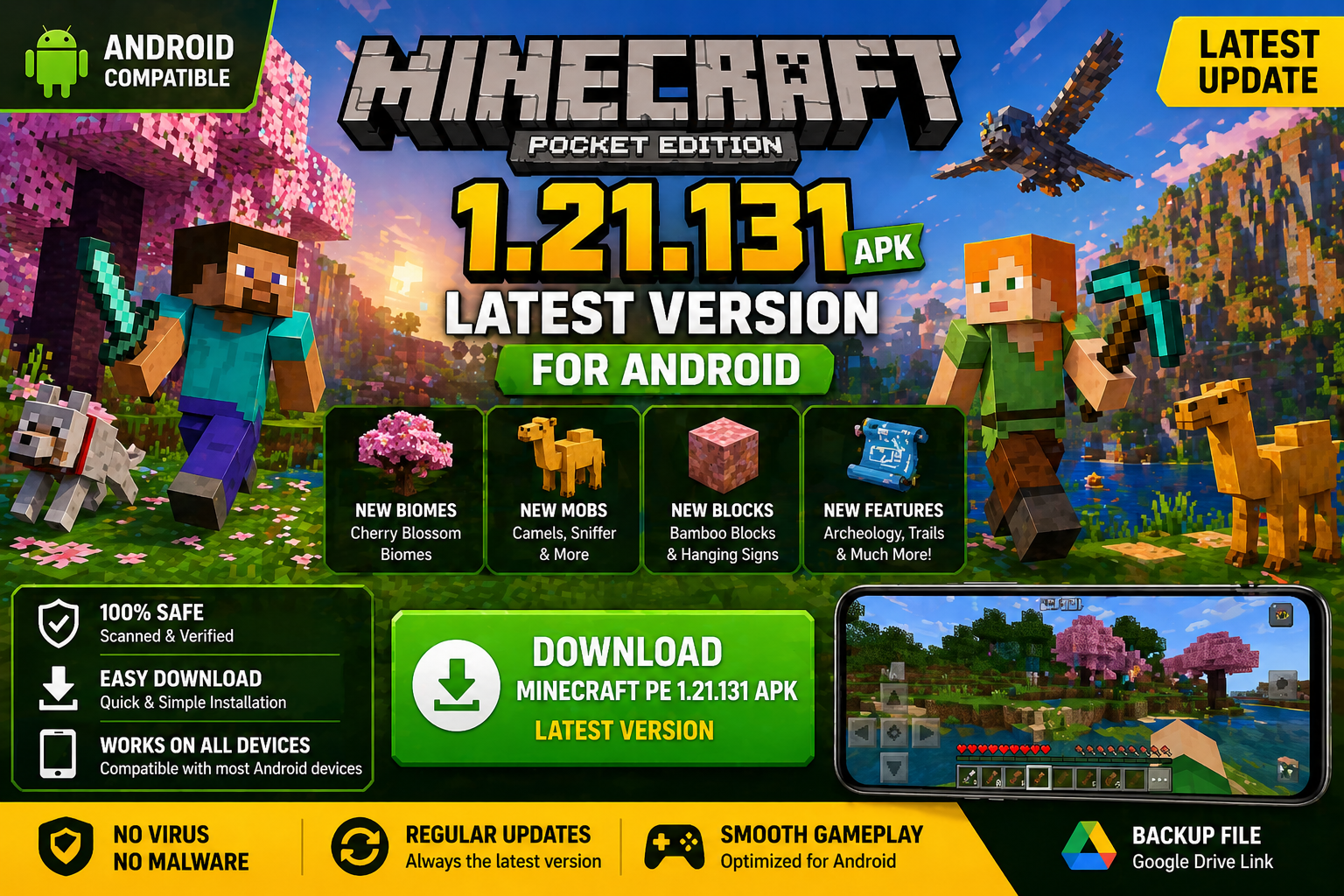
Download Minecraft PE 1.21.131 APK for Android
Minecraft Bedrock 1.21.131 is a focused hotfix update — improved Spear combat, two important bug fixes, and better overall stability on Android. No new content, but a noticeably smoother experience.
Spear Knockback Improvement
The window during which a charged Spear attack can apply knockback has been extended. This makes combat feel more reliable — the attack now connects as expected without requiring pinpoint timing, especially useful when fighting multiple mobs at once.
Spear Animation Alignment
Charge attack animations now accurately sync with the Spear’s three gameplay phases: Engaged, Tired, and Disengaged. What you see on screen now matches what the game engine is actually doing — making combat more readable and reducing guesswork in fights.
Performance & Stability
Frame drops on mid-range Android hardware have been reduced. Memory handling improvements prevent sudden freezes during long play sessions. World loading and chunk generation are more reliable, reducing terrain “pop-in” when exploring or moving quickly.
Multiplayer Improvements
Backend updates improve session stability when players join or leave. Fewer disconnects and smoother synchronisation across Bedrock servers. Marketplace content and add-ons also load more consistently during multiplayer sessions.
Adventuring Time Achievement Fixed — The achievement no longer unlocks early. It now correctly requires visiting at least 17 biomes on PC, matching the intended design.
Marketplace Escape Key Fixed — Pressing Escape after using the Marketplace search now reliably returns players to the previous menu instead of getting stuck in a loop.
Add-on World Loading Fixed — A bug that triggered a “Block” error when loading or creating worlds with multiple add-ons installed has been resolved.
Download the APK
Tap one of the Download buttons above. Choose the Standard (no music) version if storage is limited, or the Full version for the complete experience. The ARM64 build is recommended for modern phones.
Enable “Install Unknown Apps”
Go to Settings → Security (or Privacy) → Install unknown apps. Enable the permission for your browser or file manager. Android requires this for any APK installed outside Google Play.
Open the APK File
Open your Downloads folder, find the Minecraft 1.21.131 APK, and tap it to launch the system installer. Follow the on-screen prompts.
Install Over Existing Version
In most cases you can install 1.21.131 directly over your existing Minecraft without losing any worlds or progress. If you see a signature conflict error, uninstall first — but back up your worlds beforehand.
Launch and Sign In
Open Minecraft, sign in with your Microsoft/Xbox Live account, and your existing worlds will load normally. Online multiplayer, Realms, and Marketplace content all work as before.
Download Minecraft PE 1.20 APK for Android
Get the full Minecraft Bedrock 1.20 (Trails and Tales) APK for Android. Supports Xbox Live sign-in. Multiple versions available — stable releases and preview builds.
Download the APK File
Tap the Download button above for the version you want. The APK file will save to your device’s Downloads folder.
Enable “Install Unknown Apps”
Go to Settings → Security or Privacy → Install unknown apps. Enable it for your browser or file manager. Android requires this for any APK installed outside of Google Play.
Open the Downloaded File
Open your Downloads folder (or tap the notification), find the Minecraft APK, and tap it to start the installer.
Confirm Installation
Tap Install and wait for the process to complete. If you see a “signature conflict” error, uninstall your existing Minecraft version first, then retry.
Launch and Sign In with Xbox Live
Open Minecraft, sign in with your Microsoft/Xbox Live account to access multiplayer, Realms, and cross-platform features.
-
 Guides6 years ago
6 Proven Ways to Get more Instagram Likes on your Business Account
-
Mainstream12 years ago
BioWare: Mass Effect 4 to Benefit From Dropping Last-Gen, Will Not Share Template With Dragon Age: Inquisition
-
 Mainstream8 years ago
How to Buy Property & Safe Houses in GTA 5 (Grand Theft Auto 5)
-

 Guides2 years ago
Free Fire vs PUBG: Comparing Graphics, Gameplay, and More
-

 Guides2 years ago
50+ Free Fire ID and Passwords Login List (Giveaway) 2025
-
 Casual3 years ago
8 Ways to Fix Over-Extrusion and Under-Extrusion in 3D Printing
-

 Other2 years ago
Ajjubhai UID: Free Fire Details & Earnings
-

 Features2 years ago
Exploring Valorant eSports Stats: Unveiling the Metrics Behind Competitive Excellence