
Guides
Is Overwatch Cross Platform? PS4, Xbox, PC Cross-Play Guide

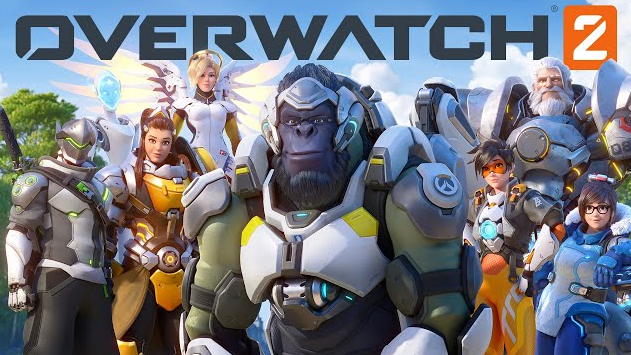
Among the most diversified game communities ever is Overwatch 2, where players from the four primary platforms—Xbox, Nintendo Switch, PlayStation, and PC—are united. One of the numerous aspects that genuinely sets Overwatch 2 apart is its cross-play feature, which allows friends who play from different platforms to get together and play. Now, in this article, we’re going to let you in on exactly how the cross-platform feature works in Overwatch 2 and how one can set it up to amp up their fun while gaming. Known simply as crossplay,
Crossplay cuts across that barrier, allowing players from other systems to play in one virtual arena. For Overwatch 2, this would mean friends on a PC who could play against or with others on an Xbox, PlayStation, or Nintendo Switch. One of the best ways to knock down borders and setup of a more inclusive and dynamic game environment is through crossplay.
Is Overwatch 2 Crossplay?

Yes, crossplay is available in Overwatch 2. In June 2022, Blizzard Entertainment opened the doors for players across other systems to join some of the most extreme matches. This does not only enrich the gaming experience; it’s also way easier and more enjoyable for everyone involved.
How to Enable Cross-Platform Play in Overwatch 2

How to Merge a Console and Battle.net Account:
Want all the perks that come with crossplay in Overwatch 2? Merge your console account with your Battle.net account. Here’s how to do it quickly and easily:
Create or Log into Battle.net: If you don’t have a Battle.net account, make one. Otherwise, just log on.
Account Settings: Click on your name at the top right and then select ‘Account Settings’.
Connections: Open the ‘Connections’ submenu in the settings menu.
Connect Your Console Account: You can select these options to link your Battle.net to either your Xbox Live, PlayStation Network, or Nintendo account
Having linked your account, voila. You can now play the game with your friends irrespective of any platform
Also Read: Top 200 Gamer Team Names For Every Type Of Player
How to Add Friends on Overwatch 2
Overwatch 2 gives the feature of connecting with friends over different platforms. This allows console players, as well as PC enthusiasts, to join forces and embark on some amazing gaming experiences.
Whether you or your friend owns a PlayStation, Nintendo Switch, or a PC Setup, you can all play connected in the action world of Overwatch 2. It has created an inclusive environment for all gamers. It has made a whole new pool of diverse players to compete and interact with each other.
Overwatch 2 makes the horizons of gaming limitless. Imagine a party consisting of various console and PC players working together to reach victory. Now that’s a game we can get behind!
Is all of this making you want to play Overwatch 2 with your friends who play on other platforms? Here is what you will have to do:
Launch Overwatch 2: Log into the game and go to the main menu.
Access “Social” Menu: This can be found in the “BATTLE PASS” area
Add a Friend: Press the orange “ADD FRIEND
Send the Request: At this point, you send a request and wait for your friend to accept.
You can also add players from the recent players list. All that you need to do is click their name and select “Add Battle.net Friend.”
Also Read: 300+ Best Female Gamer Names To Use In 2024
How Crossplay Works in Overwatch 2
Game Modes and Matchmaking
One of the key features of Overwatch 2 is that Crossplay functions differently in different game modes. Take Competitive Play, for example—right now, it divides players into two pools: one with a focus on console players and another for PC players. This would help let the game be more balanced because the mouse and keyboard are generally considered at an advantage due to their precision.
- Non-Competitive Play: Chuck the PC and console players into lobbies and then match those lobbies against PC players. This can be a bit hard on console players who do not use Aim Assist.
- Aim Assist: For console players who are matched in a lobby with a PC, this is turned off. This means the console player is now perfectly equal.
This would make the game more inclusive by allowing one to play with friends across different platforms.
- Larger pool of players: Consolidating the player base of several platforms shortens matchmaking times and opens the field of opponents/teammates to a much larger percentage of the gaming population.
- Seamless Play: You can switch between them and pick up where you left off as long as you log into the same Battle.net account.
Also Read: 200+ Badass Gamertag Names for Every Type of Gamer
Tips for a Better Cross-platform Experience
Players make good use of in-game voice chat or third-party programs like Discord to chat with other players in your game. Change your keybindings, mouse sensitivity, other controls, and settings to your liking.
Frequently Asked Questions
Ans: Though you can get along with friends into non-competitive matches across platforms, Competitive mode is limited to same-platform groups for balancing purposes.
Ans: Yes, Overwatch 2 will have cross-platform progression. You’ll be able to switch consoles and pick up right where you left off, so long as you’re logged into the same Battle.net account.
Ans: Aim Assist is turned off for console players in cases when they team up with PC players, so that fair play is observed.
Conclusion
This is one of the cross-platform features of Overwatch 2, making this platform act in unison with other approaches for enjoying the game. Crossplay makes playing a match very easy and creates an inclusive and dynamic experience. On a PC or console, everyone will have his own place within the Overwatch community anyway. Link your accounts, and let us all get ready, set, and dive headfirst into the engaging world of Overwatch 2 with friends!

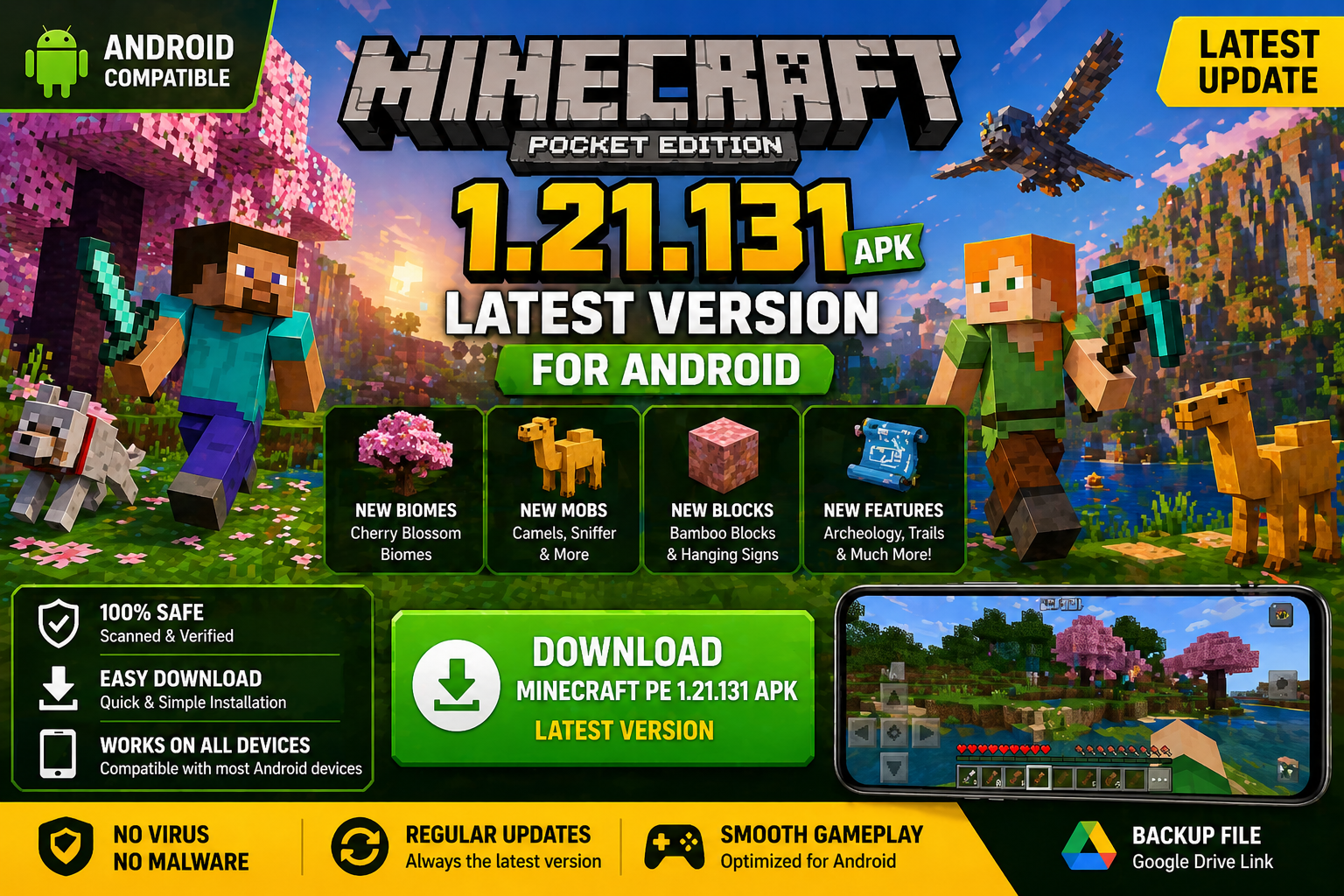
Download Minecraft PE 1.21.131 APK for Android
Minecraft Bedrock 1.21.131 is a focused hotfix update — improved Spear combat, two important bug fixes, and better overall stability on Android. No new content, but a noticeably smoother experience.
Spear Knockback Improvement
The window during which a charged Spear attack can apply knockback has been extended. This makes combat feel more reliable — the attack now connects as expected without requiring pinpoint timing, especially useful when fighting multiple mobs at once.
Spear Animation Alignment
Charge attack animations now accurately sync with the Spear’s three gameplay phases: Engaged, Tired, and Disengaged. What you see on screen now matches what the game engine is actually doing — making combat more readable and reducing guesswork in fights.
Performance & Stability
Frame drops on mid-range Android hardware have been reduced. Memory handling improvements prevent sudden freezes during long play sessions. World loading and chunk generation are more reliable, reducing terrain “pop-in” when exploring or moving quickly.
Multiplayer Improvements
Backend updates improve session stability when players join or leave. Fewer disconnects and smoother synchronisation across Bedrock servers. Marketplace content and add-ons also load more consistently during multiplayer sessions.
Adventuring Time Achievement Fixed — The achievement no longer unlocks early. It now correctly requires visiting at least 17 biomes on PC, matching the intended design.
Marketplace Escape Key Fixed — Pressing Escape after using the Marketplace search now reliably returns players to the previous menu instead of getting stuck in a loop.
Add-on World Loading Fixed — A bug that triggered a “Block” error when loading or creating worlds with multiple add-ons installed has been resolved.
Download the APK
Tap one of the Download buttons above. Choose the Standard (no music) version if storage is limited, or the Full version for the complete experience. The ARM64 build is recommended for modern phones.
Enable “Install Unknown Apps”
Go to Settings → Security (or Privacy) → Install unknown apps. Enable the permission for your browser or file manager. Android requires this for any APK installed outside Google Play.
Open the APK File
Open your Downloads folder, find the Minecraft 1.21.131 APK, and tap it to launch the system installer. Follow the on-screen prompts.
Install Over Existing Version
In most cases you can install 1.21.131 directly over your existing Minecraft without losing any worlds or progress. If you see a signature conflict error, uninstall first — but back up your worlds beforehand.
Launch and Sign In
Open Minecraft, sign in with your Microsoft/Xbox Live account, and your existing worlds will load normally. Online multiplayer, Realms, and Marketplace content all work as before.
Download Minecraft PE 1.20 APK for Android
Get the full Minecraft Bedrock 1.20 (Trails and Tales) APK for Android. Supports Xbox Live sign-in. Multiple versions available — stable releases and preview builds.
Download the APK File
Tap the Download button above for the version you want. The APK file will save to your device’s Downloads folder.
Enable “Install Unknown Apps”
Go to Settings → Security or Privacy → Install unknown apps. Enable it for your browser or file manager. Android requires this for any APK installed outside of Google Play.
Open the Downloaded File
Open your Downloads folder (or tap the notification), find the Minecraft APK, and tap it to start the installer.
Confirm Installation
Tap Install and wait for the process to complete. If you see a “signature conflict” error, uninstall your existing Minecraft version first, then retry.
Launch and Sign In with Xbox Live
Open Minecraft, sign in with your Microsoft/Xbox Live account to access multiplayer, Realms, and cross-platform features.
-
 Guides7 years ago
6 Proven Ways to Get more Instagram Likes on your Business Account
-
Mainstream12 years ago
BioWare: Mass Effect 4 to Benefit From Dropping Last-Gen, Will Not Share Template With Dragon Age: Inquisition
-
 Mainstream8 years ago
How to Buy Property & Safe Houses in GTA 5 (Grand Theft Auto 5)
-

 Guides2 years ago
Free Fire vs PUBG: Comparing Graphics, Gameplay, and More
-

 Guides2 years ago
50+ Free Fire ID and Passwords Login List (Giveaway) 2025
-
 Casual3 years ago
8 Ways to Fix Over-Extrusion and Under-Extrusion in 3D Printing
-

 Other2 years ago
Ajjubhai UID: Free Fire Details & Earnings
-

 Features2 years ago
Exploring Valorant eSports Stats: Unveiling the Metrics Behind Competitive Excellence