
Guides
Valorant Walkthrough: How To Lower Ping In Valaront?

If you’re an avid Valorant gamer, you’d know how valorant operates by now. This article aims to improve your ping while playing on Valorant Servers.
With better and improved ping, your gaming experience on Valorant drastically improves as well. So without wasting more time, let us learn how to lower ping in Valorant.
What Is Ping In Valorant?
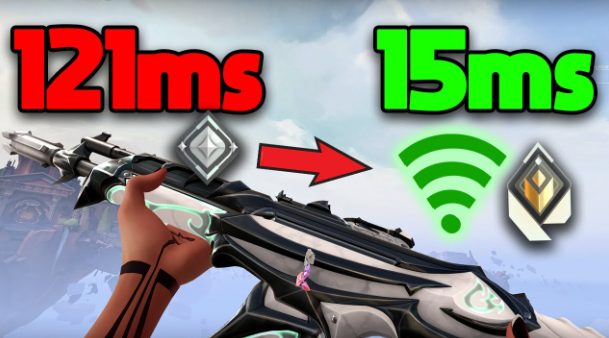
Valorant is a game all about your quick reflexes and quick actions. It would be a shame for your gameplay to go down the drain due to latency issues. This is why it is especially important to have a lower ping on Valorant.
In short Ping in Valorant is also known as the MS, or the network latency between your PC and Valorant. This essentially means that your ping decides how quickly your computer responds to input commands with respect to the main Valorant Servers.
Lucky for you there are a lot of ways to improve your ping through a stable internet connection. Today we have covered all the possible options for this.
Also Read: Error Code 91: What It Is and How to Fix It Quickly
How To Get Lower Ping In Valorant?
The first and foremost advice to all Valorant players out there is to make sure that you are not connected to a Virtual Private Network (VPN). We understand that it is a unique and fun experience to play Valorant from different regions, but if you’re looking for a lower ping in your gaming, being connected to a VPN won’t help your efforts.
Use a Wired Connection
This is one of the best and efficient ways to lower your ping in Valorant. The method is really simple. Find yourself an Ethernet cable and plug it into your PC, connect the other end with an internet router. Essentially, establish a direct Ethernet connection to the internet.
When you get rid of the wireless connection, the risk of internet fluctuations is less as well.This is why a physical connection is a lot better than a wireless one when it comes to gaming. A physical connection reduces your ping at least by five. So the next time you are timing your Viper Snake Bite post-plant lineups on Breeze’s A site correctly, you won’t be missing them!
Ethernet Cables are really efficient and not more than $10 for a decent one that will just do the job!
Also Read: The Most Valuable Knife in CS:GO: A Collector’s Dream
Disconnect Other Devices
Think this well, how much do you need your Netflix streaming in the background while you’re immersed in the match of Valorant? Well, if you really think background Netflix is a priority over your game, then don’t blame the band ping rate the next time you lose a match.
If you’re really fixed on winning the game, then disconnect all the other devices that are connected to the internet or your Wifi. Even idle devices when connected to the internet cna use up your broadband, making your connection falter and put your Ascendant at risk.
This also goes for your Playstation or Xbox if you’re not using it for gaming. Basically any device that is connected to the internet but is sitting idle may affect your ping rate in Valorant. If a match really matters to you, then you will lose 30 seconds of your time to disconnect the devices and up your game!
Also Read: How To Change Summoner Name In League Of Legends
Prioritize Valorant
There is another simple way to improve your ping rate, and this method has at times worked better than other ones.
Open your Task Manager, and select the Details Tab. Now in your list of applications, scroll down until you find VALORANT. Right click on the app to set its priority to high.
This is quite a simple trick, but basically instructs your computer that when the application of VALORANT is running, to funnel all required resources into ensuring that VALORANT is running smoothly on your device.
Close Other Applications
If you have multiple tabs or applications open while playing VALORANT, it increases your ping and causes you to lag. All of the activity from those tasks is being divided by your computer, affecting the rest of the performance of your gaming. It is good to close unnecessary tabs and applications so that they do not consume your system’s resources.
Furthermore, the downloading or uploading of files in the background may cause ping spikes. This consumes bandwidth that affects your network latency, resulting in a poor gaming experience. Pause any downloads or uploads while playing to attain the best gaming experience with minimal ping issues in VALORANT.
In case you have done all the steps above and still get the ping spikes, there might be some issues with your local area or even connection that is unstable. Reaching out to your ISP will help to pin it down and filter them out.
Optimizing the resources used by your computer and having a stable internet connection will help in improving your gaming experience in VALORANT, eventually reducing ping spikes.
Also Read: Top 10 Phantom Skins in Valorant: A Must-Have Guide
Wrapping Up
These are all the possible ways in which you could improve your ping spike on VALORANT. A lower ping spike means a better game, and with all your cards played right, soon you will be taking that title of Most Valuable Player down to the hall of fame!

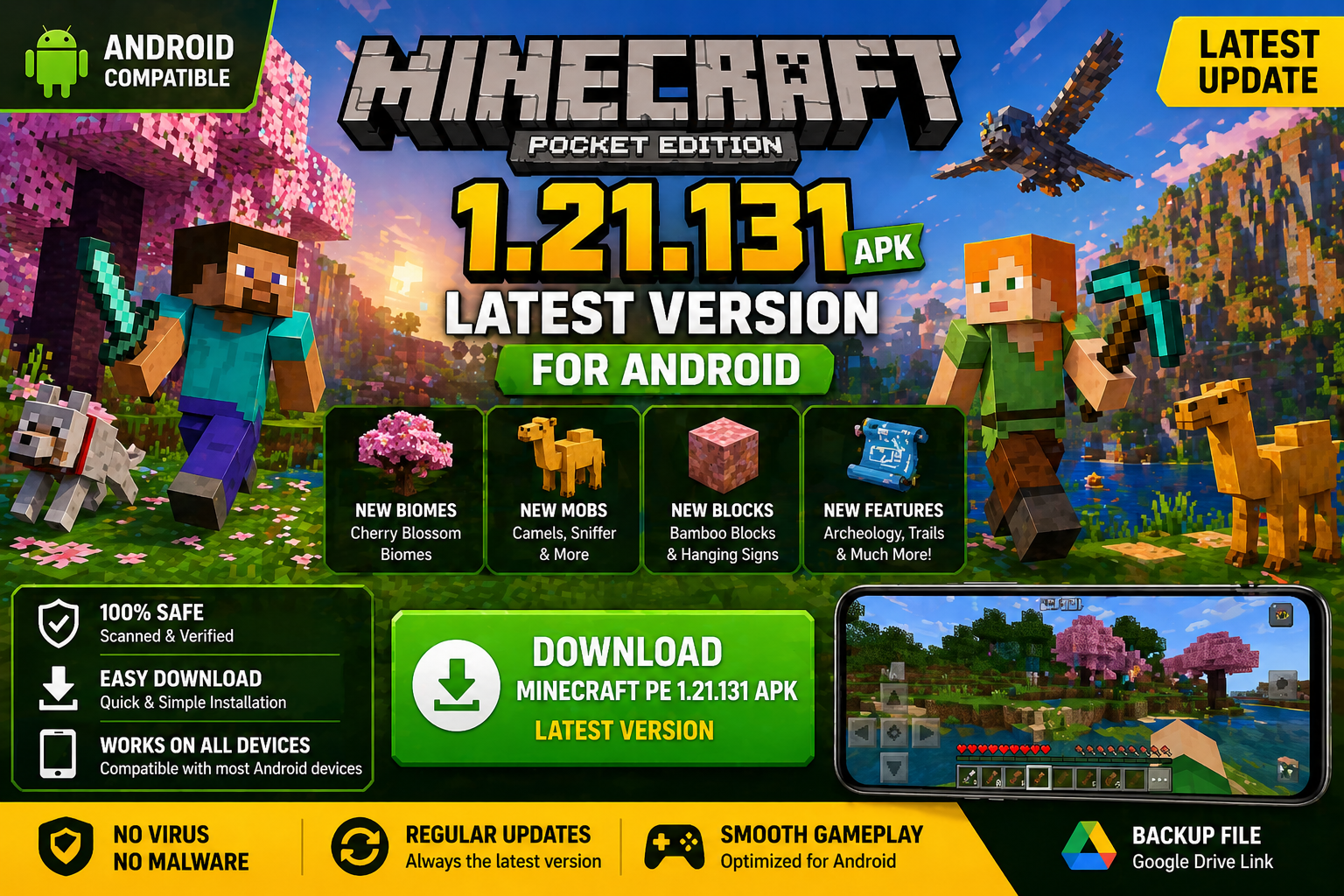
Download Minecraft PE 1.21.131 APK for Android
Minecraft Bedrock 1.21.131 is a focused hotfix update — improved Spear combat, two important bug fixes, and better overall stability on Android. No new content, but a noticeably smoother experience.
Spear Knockback Improvement
The window during which a charged Spear attack can apply knockback has been extended. This makes combat feel more reliable — the attack now connects as expected without requiring pinpoint timing, especially useful when fighting multiple mobs at once.
Spear Animation Alignment
Charge attack animations now accurately sync with the Spear’s three gameplay phases: Engaged, Tired, and Disengaged. What you see on screen now matches what the game engine is actually doing — making combat more readable and reducing guesswork in fights.
Performance & Stability
Frame drops on mid-range Android hardware have been reduced. Memory handling improvements prevent sudden freezes during long play sessions. World loading and chunk generation are more reliable, reducing terrain “pop-in” when exploring or moving quickly.
Multiplayer Improvements
Backend updates improve session stability when players join or leave. Fewer disconnects and smoother synchronisation across Bedrock servers. Marketplace content and add-ons also load more consistently during multiplayer sessions.
Adventuring Time Achievement Fixed — The achievement no longer unlocks early. It now correctly requires visiting at least 17 biomes on PC, matching the intended design.
Marketplace Escape Key Fixed — Pressing Escape after using the Marketplace search now reliably returns players to the previous menu instead of getting stuck in a loop.
Add-on World Loading Fixed — A bug that triggered a “Block” error when loading or creating worlds with multiple add-ons installed has been resolved.
Download the APK
Tap one of the Download buttons above. Choose the Standard (no music) version if storage is limited, or the Full version for the complete experience. The ARM64 build is recommended for modern phones.
Enable “Install Unknown Apps”
Go to Settings → Security (or Privacy) → Install unknown apps. Enable the permission for your browser or file manager. Android requires this for any APK installed outside Google Play.
Open the APK File
Open your Downloads folder, find the Minecraft 1.21.131 APK, and tap it to launch the system installer. Follow the on-screen prompts.
Install Over Existing Version
In most cases you can install 1.21.131 directly over your existing Minecraft without losing any worlds or progress. If you see a signature conflict error, uninstall first — but back up your worlds beforehand.
Launch and Sign In
Open Minecraft, sign in with your Microsoft/Xbox Live account, and your existing worlds will load normally. Online multiplayer, Realms, and Marketplace content all work as before.
Download Minecraft PE 1.20 APK for Android
Get the full Minecraft Bedrock 1.20 (Trails and Tales) APK for Android. Supports Xbox Live sign-in. Multiple versions available — stable releases and preview builds.
Download the APK File
Tap the Download button above for the version you want. The APK file will save to your device’s Downloads folder.
Enable “Install Unknown Apps”
Go to Settings → Security or Privacy → Install unknown apps. Enable it for your browser or file manager. Android requires this for any APK installed outside of Google Play.
Open the Downloaded File
Open your Downloads folder (or tap the notification), find the Minecraft APK, and tap it to start the installer.
Confirm Installation
Tap Install and wait for the process to complete. If you see a “signature conflict” error, uninstall your existing Minecraft version first, then retry.
Launch and Sign In with Xbox Live
Open Minecraft, sign in with your Microsoft/Xbox Live account to access multiplayer, Realms, and cross-platform features.
-
 Guides7 years ago
6 Proven Ways to Get more Instagram Likes on your Business Account
-
Mainstream12 years ago
BioWare: Mass Effect 4 to Benefit From Dropping Last-Gen, Will Not Share Template With Dragon Age: Inquisition
-
 Mainstream8 years ago
How to Buy Property & Safe Houses in GTA 5 (Grand Theft Auto 5)
-

 Guides2 years ago
Free Fire vs PUBG: Comparing Graphics, Gameplay, and More
-

 Guides2 years ago
50+ Free Fire ID and Passwords Login List (Giveaway) 2025
-
 Casual3 years ago
8 Ways to Fix Over-Extrusion and Under-Extrusion in 3D Printing
-

 Other2 years ago
Ajjubhai UID: Free Fire Details & Earnings
-

 Features2 years ago
Exploring Valorant eSports Stats: Unveiling the Metrics Behind Competitive Excellence